
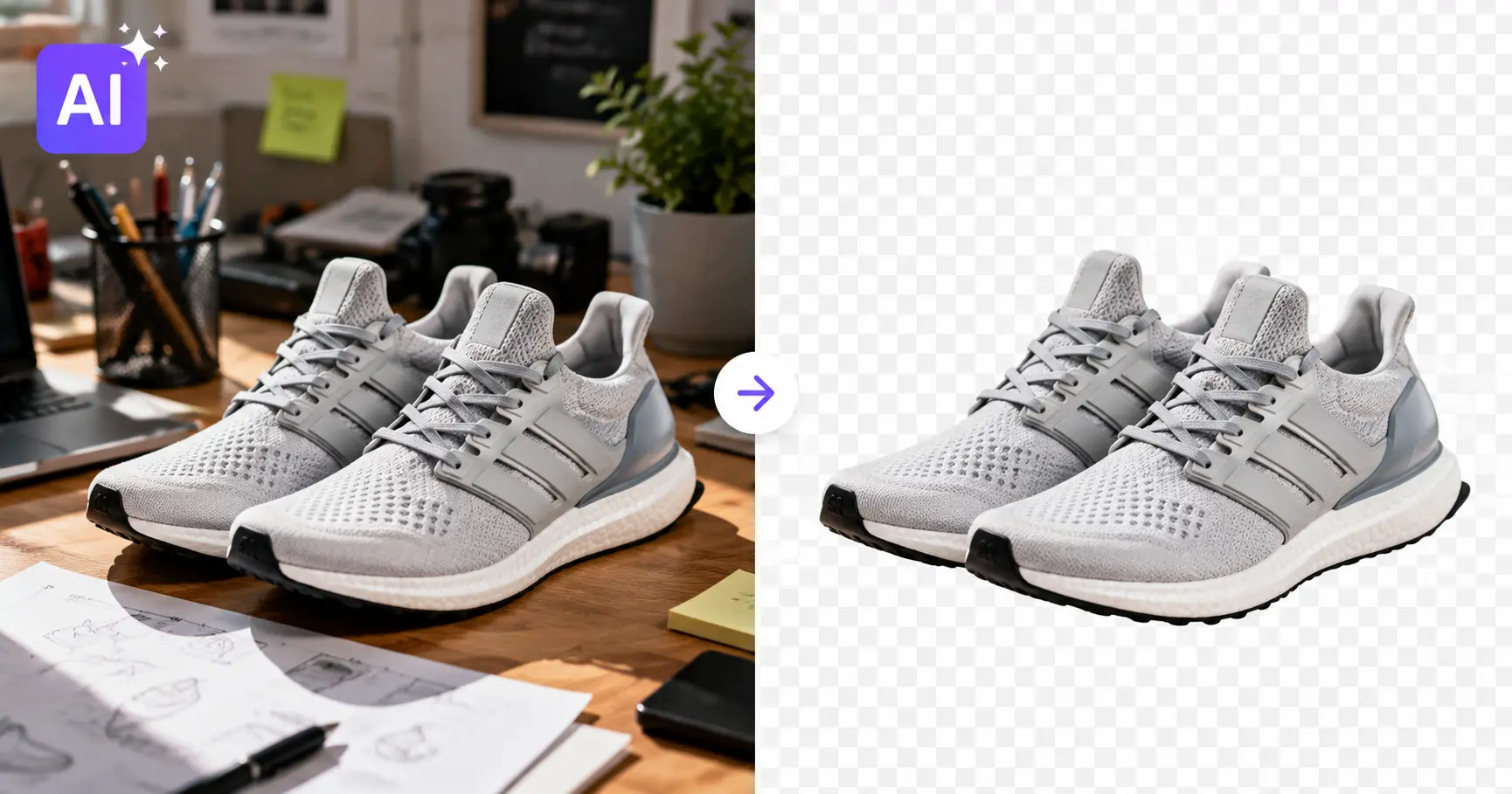
Removing a background with AI used to mean one of two things: paying $9.99 a month, or living with an ugly diagonal watermark slapped across your photo. Neither is true anymore. This guide covers exactly how to remove background with AI free in 2026, using nothing but genuinely free, no-watermark tools.
I’ve spent years pulling product photos, headshots, and social graphics apart from their backgrounds — first manually in Photoshop, then with every tool claiming to be the best free ai background remover no watermark in my search results. Most of them lied about the “free” part. This guide is the one I wish existed when I started: no fluff, no fake rankings, just what actually works — whether you need a single portrait cutout, a batch remove background ai free workflow for 200 product photos, or an ai background remover high resolution free enough for print.
Quick answer: The fastest free way to remove a background with AI in 2026 is to use a browser based ai background remover (no install, no login) that outputs a transparent PNG at your original resolution. Upload the photo, let the AI auto-detect the subject, clean up the edges with the built-in eraser or restore brush, then export as PNG — never JPG, since JPG can’t hold transparency. Pair it with a free upscaler and a canva AI text to image tutorial workflow, and you can go from raw photo to a polished, print-ready graphic without spending a cent.
Table of Contents
What “Free AI Background Removal” Actually Means in 2026
Here’s the part most articles skip. Not all “free” tools are free the same way.
AI background removal works by running your photo through a segmentation model — software trained to tell the difference between “the thing you care about” and “everything else.” It draws a mask around your subject, hair strands and all, then deletes everything outside that mask. That’s the whole trick. The differences between tools come down to how good that mask is, and what the company charges you once you want to keep it.
The Three Kinds of “Free”
I’ve sorted every tool I’ve tested into three honest buckets:
- Genuinely free. No login, no watermark, full resolution, unlimited or generously capped uses. Rare, but they exist — usually browser-based tools running open-source models.
- Freemium-gated. Free to try, but the free tier caps resolution, adds a watermark, or limits you to a handful of images before asking for payment.
- Bait-and-switch. You can generate or preview for free, but downloading the actual usable file requires an account, a credit card, or a “verify your email” wall you didn’t expect.
Knowing which bucket a tool falls into before you upload 50 product photos saves you an afternoon of frustration. I’ll flag which is which as we go, including which tools genuinely qualify as the best free ai background remover no watermark option for your specific use case.
How to Remove Background with AI for Free: Step-by-Step
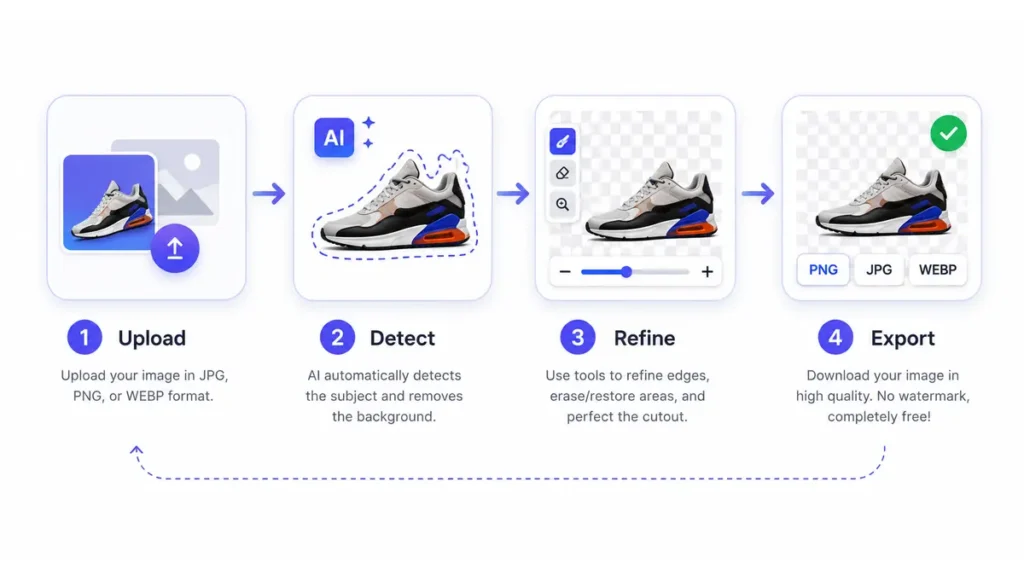
This is the actual workflow for how to remove background with AI free, regardless of which specific tool you land on. The buttons move around, but the logic doesn’t change.
Step 1: Pick the Right Tool for Your Image
A plain portrait on a solid wall is easy — almost any free tool nails it. Fine hair, fur, glass, jewelry, or a busy background need a tool with stronger edge detection. Match the tool to the subject before you commit a batch of photos to it.
Step 2: Upload and Let the AI Auto-Detect the Subject
Drag your photo in. Most tools process it in three to ten seconds, no settings required. You’ll see a preview with the background replaced by a checkerboard pattern — that pattern signals transparency, not an error.
Step 3: Refine the Edges Manually
This step separates an amateur cutout from a usable one. Almost every free tool includes a restore brush (to bring back detail the AI over-erased) and an erase brush (to remove stray background bits the AI missed). Zoom in on hair, fingers, and product corners — these are where AI models fail most often.
Step 4: Export in the Correct Format
Export as PNG, not JPG. JPG doesn’t support an alpha channel, so “transparent” pixels get filled in with solid white or black the moment you save. If your tool offers WebP with transparency, that’s a smaller file at equal quality — useful once you’re placing the image on a website.
A quick note from my own workflow: I once handed a client 40 “transparent” product cutouts that were actually flattened onto white — I’d exported as JPG out of habit. It cost me an evening redoing the batch. Check your file extension before you zip anything up and send it off.
→ See also: Best AI Tools for Gym Owners and Personal Trainers 2026
The Best Free AI Background Remover Tools With No Watermark (2026 Comparison)
I’m not going to tell you there’s one single “best” tool, because the right pick depends entirely on your subject matter and how much control you want. Here’s how the major, verifiable options actually stack up when you’re hunting for the best free ai background remover no watermark solution — including which ones double as a solid free background remover for ecommerce products.
| Tool | Best For | Watermark on Free Tier? | Login Required? | Free Batch Support | The Catch |
|---|---|---|---|---|---|
| remove.bg | Hair & fur edge accuracy | No | No login to try; account to download | No (paid feature) | Free downloads are capped at low resolution |
| Canva Background Remover | Designers already in Canva | No | Free Canva account | Limited | Best features sit behind Canva Pro |
| Adobe Express | Adobe-grade edge detection | No | Adobe ID required | No native free batch | Pulls you into the wider Adobe ecosystem |
| Photoroom | E-commerce product shots | Yes, on free exports | No login to try | Available, often paywalled | Branding appears unless you upgrade |
| Pixlr | Casual & social media use | No | No login | Yes (zip export) | Edge quality dips on low-contrast subjects |
| Fotor | Bulk product catalogs | No | Free account for full access | Yes, up to roughly 50 images | Deeper retouching needs a paid plan |
| Photopea | Manual, precision editing | No | No login | Manual only | Layer-based; steeper learning curve |
| Browser-based / client-side tools | Privacy-sensitive images | No | No login, no upload | Usually one image at a time | Fewer advanced editing extras |
Summary: this table compares free AI background removers by watermark policy, login requirement, batch support, and the real catch behind each free tier.
Quick Picks by Use Case
- Total beginner, one photo at a time: Pixlr or Photopea. No account, no watermark, forgiving interface.
- E-commerce seller with a product catalog: Fotor or Photoroom for batch speed, remove.bg for your hero image where hair or fur detail matters.
- Freelancer or small agency needing pixel-level control: Photopea. It’s a full layer-based editor in your browser, so you can mask, feather, and composite exactly like Photoshop.
- Anyone editing sensitive or unreleased product photos: a browser-based, client-side tool. Your files never leave your device.
Browser-Based AI Background Removers: Why “No Install” Matters
A browser based ai background remover runs entirely in your tab — no software download, no account creation, sometimes no server upload at all. If privacy and speed matter more to you than extra editing features, this category is usually your best starting point.
How Client-Side Background Removal Actually Works
Some of these tools load an open-source segmentation model — like the widely used RMBG family of models — directly into your browser using WebAssembly or WebGPU. Your photo is processed on your own device’s hardware, not uploaded to a company’s server. That’s a meaningfully different privacy story than a cloud tool, since nothing ever leaves your machine.
Who Should Prioritize a Browser-Based Tool
- Freelancers under an NDA handling unreleased client products or designs.
- Small business owners editing photos of people (staff headshots, customer photos) where consent and data handling matter.
- Anyone on a slow or metered internet connection, since nothing needs to upload.
- Users who simply don’t want to create another account for a one-off edit.
The trade-off: browser-based tools are usually built for one image at a time, and they skip the fancier retouching extras that cloud platforms bundle in. For a single clean cutout, that trade-off rarely matters.
How to Batch Remove Backgrounds From Multiple Images for Free
If you’re a dropshipper uploading 200 SKUs, or a social media manager clearing a week’s worth of thumbnails, doing this one image at a time isn’t realistic. Learning to batch remove background ai free is where free tiers get stingiest, so plan around it.
Setting Up a Batch Workflow That Doesn’t Waste Your Free Credits
- Sort your images first. Group photos by background complexity — plain backgrounds in one batch, busy or reflective ones in another — so you can spot-check the harder group more carefully.
- Run a test batch of five. Before committing your full catalog to a free tier’s daily cap, confirm the tool handles your specific product type well.
- Standardize file names before upload (product-sku-001.jpg, product-sku-002.jpg), so the exported zip matches your inventory sheet without manual re-sorting.
- Download and back up immediately. Many free batch tools auto-delete processed files from their servers within an hour or two for privacy reasons — don’t leave your only copy sitting in their queue.
The Batch Processing Gotchas Nobody Mentions
- Free batch caps are usually 20 to 50 images per session, not unlimited — Fotor and AI Ease both cap around 50; plan multiple sessions for larger catalogs.
- Batch results are less consistent than single-image edits. The AI applies the same settings across every photo, so a product photographed at a slightly different angle can get a rougher cutout than its neighbors. Always spot-check at least 10% of a large batch.
- Some “batch” tools only batch the upload, not the editing. You still refine each image’s edges one by one afterward. Read the feature description carefully; “batch upload” and “batch processing” aren’t the same promise.
Getting High-Resolution, Print-Ready Cutouts for Free
This is the single biggest gap between what free tools promise and what they deliver. Watermarks get all the attention, but resolution capping is the more common catch when you’re searching for an ai background remover high resolution free enough for print or marketplace zoom.
Why Free Tools Cap Your Resolution
Running an AI model costs the company compute time, and full-resolution processing costs more than a downscaled preview. Capping free downloads to a smaller size is how many tools stay “free” while still covering their server bill. remove.bg is the clearest example: the cutout itself is excellent, but a free download often lands well under 1 megapixel unless you pay for HD.
The Upscale-First vs. Remove-First Debate
Here’s a decision nobody else seems to spell out clearly: should you upscale before or after removing the background?
- Remove the background first, in most cases. You save processing time by not upscaling pixels you’re about to delete, and most segmentation models were trained on moderate-resolution images anyway.
- Upscale first only if the AI can’t find a clean edge. If your original photo is so small or blurry that the segmentation model produces a jagged, broken mask, run it through an upscaler first, then re-attempt background removal on the sharper result.
- Do a final upscale pass on the finished cutout if you still need more pixels for print or a marketplace zoom feature.
→ See also: How to Upscale Images With AI Free: 5 Tools Compared
How to Upscale Images With AI for Free (After Background Removal)
Once your cutout is clean, knowing how to upscale images with AI free gets you from “web-ready” to “print-ready” or “meets the marketplace’s zoom requirement.”
Step-by-Step
- Upload your transparent PNG cutout, not the original background-included photo — this saves processing time and keeps the file size manageable.
- Choose your scale factor. 2x is usually free and sufficient for most listings; 4x is where many tools start gating behind a paid plan.
- Pick the right model type if offered — photo-realistic models handle product shots and portraits better, while illustration-tuned models (built for anime or line art) can actually make photographs look worse.
- Process and download, then immediately open the file in a viewer that actually respects transparency (Preview on Mac, the Windows Photos app) rather than trusting the tool’s own in-browser preview.
A gotcha worth repeating: not every free upscaler supports transparency. Some will flatten your cutout onto a solid white or black background mid-upscale, silently destroying the transparent edge you just spent time cleaning up. Test on one image before you run a batch of 50 through it.
What Upscaling Can’t Fix
AI upscaling fixes pixelation, not blur. If your photo is low-resolution because it was resized down, upscaling reconstructs plausible detail and the result looks genuinely sharper. If your photo is blurry because of camera shake or missing focus, upscaling only makes a bigger blurry photo — there’s no detail left to reconstruct. Know which problem you actually have before you spend time on this step.
For a genuinely unlimited free option with no daily cap, Upscayl is worth knowing about: it’s an open-source desktop app (Windows, Mac, Linux) that runs upscaling models locally on your own GPU, so there’s no per-image limit and no internet connection required once it’s installed.
Free Background Remover for E-commerce Products: What Sellers Actually Need
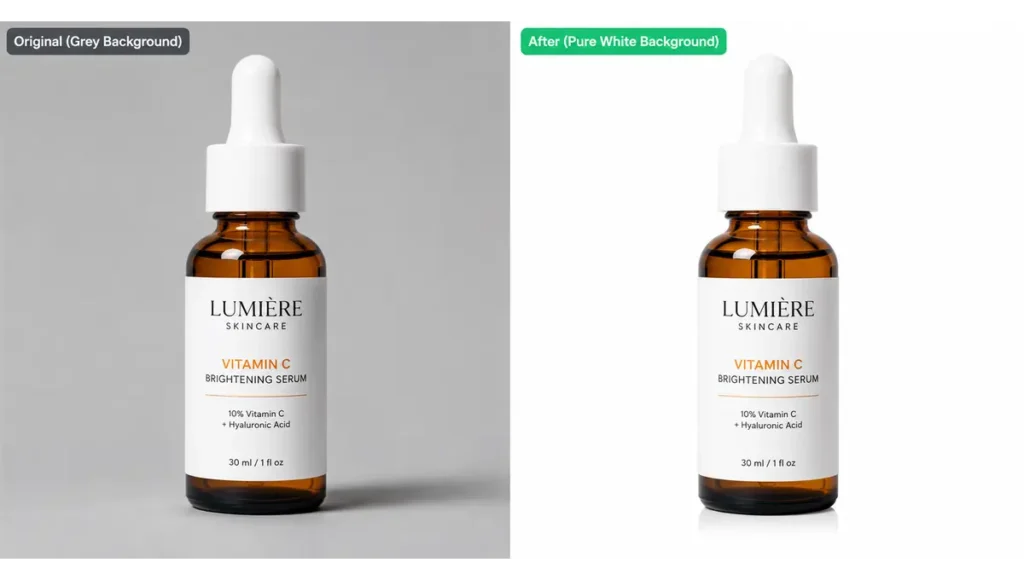
If you sell on Amazon, Etsy, Shopify, or through a dropshipping storefront, a free background remover for ecommerce products isn’t optional polish — it’s a listing requirement.
Marketplace Rules You Can’t Skip
- Amazon’s main product image must sit on a pure white background — specifically RGB 255,255,255, with no shadows or gradients. Automated scanning flags anything off-white, even by a shade you can’t see with your own eyes.
- The product should fill roughly 85% of the frame, with a small margin of white space around it.
- Minimum image size is 1,000 pixels on the longest side to unlock zoom functionality; most experienced sellers aim for 1,600 to 2,000 pixels for a sharper zoom experience.
- No text, logos, or watermarks on the main image — this is exactly why a “free but watermarked” background remover can actively get your listing rejected.
Why This Actually Moves Sales, Not Just Compliance
This isn’t just a rule to avoid a rejected listing. According to Baymard Institute’s large-scale usability research, the majority of shoppers’ very first action on a product page is to start exploring the images — before they read a single word of the title or description. A clean, high-resolution cutout is doing real work before your copy even gets read.
A Simple Product-Photo Workflow for Dropshippers
- Shoot or source the product photo against any reasonably plain background — you don’t need a studio setup if you’re removing the background anyway.
- Run it through a batch background remover to strip the original background from your whole catalog at once.
- Composite onto a pure white canvas at the exact pixel dimensions your marketplace requires, rather than trusting the tool’s default export size.
- Upscale only the SKUs that fall short of the 1,000px minimum, so you’re not wasting free upscale credits on photos that already meet spec.
- Spot-check 10% of the batch for stray shadows or fringing before you upload to your storefront.
No-Login AI Art Generators for Backgrounds & Social Content
Sometimes you don’t want a transparent cutout — you want an entirely new, AI-generated backdrop behind your subject. This is where an AI art generator no login required earns its place in the workflow.
- Craiyon has been running as a genuinely no-signup, unlimited-generation tool for years. Quality sits below premium diffusion models, but it’s fast and frictionless for quick concepts.
- Perchance’s AI Art Generator works entirely in-browser with no account, and its site also bundles a background remover and quick-edit tools in the same tab — handy for a one-stop composite.
- Microsoft Designer / Bing Image Creator produces noticeably sharper results, but be aware it does require a free Microsoft account to sign in — it isn’t strictly login-free, just free to use once you are.
Composite Workflow: Cutout + AI-Generated Scene
- Remove the background from your subject using any tool from the comparison table above.
- Generate a new scene with a no-login art generator, describing the mood, lighting, and setting you want.
- Layer your transparent subject over the generated background in any free editor — Photopea handles this well since it supports layers natively.
- Match the lighting direction and color temperature between subject and background by eye; this single step is what makes a composite look intentional instead of pasted.
How to Use Canva’s AI Text-to-Image Tool (Magic Media): Step by Step
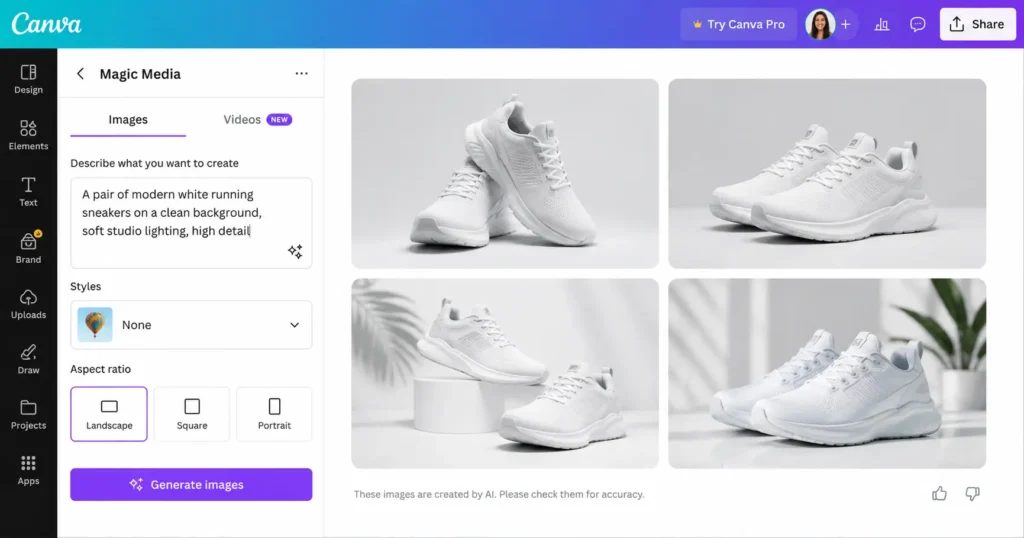
Canva bundles its AI image generator, Magic Media, directly into its design platform, so this canva AI text to image tutorial is a natural next step once you’ve already got a background-free asset to design around.
- Open a Canva design and locate Magic Media — search “Magic Media” under Apps, or scroll to “AI Image Generator” in the Elements panel.
- Type a detailed prompt, describing the subject, style, and setting you want. Canva’s own help documentation recommends being specific rather than generic — “modern home office, mountain view, bright window” outperforms “an office.”
- Not sure what to type? Click “Inspire me” for sample prompts, which is genuinely useful for understanding how detailed a good prompt needs to be.
- Choose a style — photography, digital art, or fine art are the broad categories, with specific looks like Watercolor, Neon, or Filmic nested inside.
- Pick your layout — square, landscape, or portrait, matched to where the image will actually be used.
- Select “Generate images” and Canva returns four variations at once; regenerate as many times as your account’s monthly allowance allows.
- Click an image to drop it straight into your design, already sized to your canvas.
Canva’s free accounts get a limited number of Magic Media generations per month, well below what Canva Pro or Teams accounts receive — and that number has changed more than once as the feature has matured. Check Canva’s own Magic Media help page for the current allowance before you plan a project around it.
7 Mistakes That Ruin “Free” Background Removal Results
I’ve made most of these myself, which is exactly why they’re worth listing.
- Exporting as JPG instead of PNG, which silently kills your transparency.
- Ignoring color fringing — a thin halo of the old background color left clinging to the subject’s edge, usually from compression artifacts on the original photo. Zoom to 200% and check hair and fine edges before calling a cutout finished.
- Never reading a free tool’s terms of service. Some free tools claim broad usage rights over uploaded images, or restrict commercial use entirely — a real problem if you’re editing product photos for a paying client.
- Assuming “no login” means “no catch.” Plenty of tools let you generate for free but gate the actual download behind a signup wall. Test the full download flow before you commit a whole project to a new tool.
- Skipping the mobile check. Many creators edit and post entirely from a phone; test your chosen tool’s mobile site or app before assuming desktop instructions apply directly.
- Batch-processing without spot-checking. A 50-image batch can have three ruined cutouts hiding in the middle of it — always review a sample before bulk-uploading anywhere.
- Upscaling a blurry photo and expecting sharpness. As covered above, upscaling fixes pixelation, not out-of-focus blur.
Free vs. Paid: When You Actually Need to Upgrade
Free tools cover the vast majority of use cases in this guide. A paid plan starts to earn its cost when:
- You’re processing hundreds of images weekly and the time saved by unlimited batch processing outweighs a subscription fee.
- Your subject matter is consistently difficult — fine fur, motion-blurred hair, semi-transparent glass or fabric — where premium models genuinely outperform free ones on edge accuracy.
- You need guaranteed full resolution on every single export, with no per-image cap to plan around.
- You’re running this as part of a paid client service, where a stray watermark or a resolution downgrade could cost you the client.
If none of those apply to you today, stick with the free stack above and revisit this decision once your volume actually justifies it.
Which Free Tool Should You Actually Use?
If you only take one thing from this guide, let it be this: match the tool to your actual workflow, not to whichever one ranks first in a search result.
- Beginners and casual users: start with Pixlr or Photopea. Zero friction, zero watermark.
- E-commerce sellers and dropshippers: batch through Fotor or a similar bulk tool, then run your hero shots through remove.bg for the strongest edge quality.
- Social creators and YouTubers: a browser-based tool for quick thumbnail cutouts, paired with a no-login AI art generator like Perchance or Craiyon for custom backgrounds.
- Freelancers and small agencies: Photopea for manual control, plus a client-side tool for any project under an NDA.
Frequently Asked Questions
Is there a completely free AI background remover with no watermark?
Yes — several browser-based tools, along with Pixlr and Photopea, remove backgrounds with no watermark and no login required. The trade-off with most free tiers is a resolution cap or a limit on batch size, not a watermark.
Can I remove a background with AI without downloading any software?
Yes. Every tool covered in this guide runs directly in a web browser — no software installation is required for background removal itself. Only the free upscaler Upscayl requires a desktop install, and that’s optional.
Does removing the background reduce my image quality?
Not inherently — a well-made cutout preserves the original pixel data of your subject. Quality loss usually comes from a tool’s resolution cap on the free tier, or from exporting in a lossy format instead of PNG.
What’s the best free background remover for e-commerce product photos specifically?
Photoroom and Fotor are purpose-built for product catalogs, though Photoroom adds a watermark unless you upgrade. For a single hero image where edge accuracy matters most, remove.bg remains the benchmark, with a low-resolution free download.
Can I batch remove backgrounds from multiple images for free?
Yes, tools like Fotor and Pixlr support free batch processing, typically capped between 20 and 50 images per session. Larger catalogs need multiple sessions or a paid plan for true unlimited batch runs.
How do I keep the background transparent when I save my file?
Always export as PNG or WebP with transparency enabled — never JPG, which cannot store an alpha channel and will fill “transparent” areas with solid white or black.
Is it safe to upload personal photos to free AI background removers?
Cloud-based tools upload your image to their servers, which is fine for most casual use but worth avoiding for sensitive images. Browser-based, client-side tools process everything locally on your device and never upload the file at all.
Can I use AI-removed background images for commercial or e-commerce use?
Usually yes, but it depends entirely on the specific tool’s terms of service, not on the fact that AI was involved. Check the tool’s commercial-use policy before building an entire product catalog around it, since terms vary and do change.
I’ve reworked this workflow more times than I can count, and the honest truth is the “best” free tool changes every few months as these companies compete on their free tiers. What doesn’t change is the process for how to remove background with AI free: pick a tool that matches your subject, refine the edges yourself, export as PNG, and always test one image before you commit a whole batch to it.
Related articles on GetFuturix: