
Every ChatGPT output sounds like it came from the same person. Because it basically did.
We have read hundreds of AI-written emails, captions, and blog drafts this year. Nine out of ten have the exact same rhythm. Same three-word openers. Same “in today’s fast-paced world.” Same weirdly upbeat tone that nobody actually talks in.
Here is the good news: learning how to make ChatGPT write like you is not complicated. It just requires more than typing “write casually” into a settings box. That is what most guides tell you to do, and it is why most people give up after one try.
We are going to show you the actual method. Two parts. Fifteen minutes total. By the end, ChatGPT will sound like you, not like every other ChatGPT user on the internet.
Table of Contents
Why ChatGPT Sounds Generic by Default
ChatGPT was trained on writing from millions of different people. When it generates a response, it is not channelling one voice. It is averaging all of them.
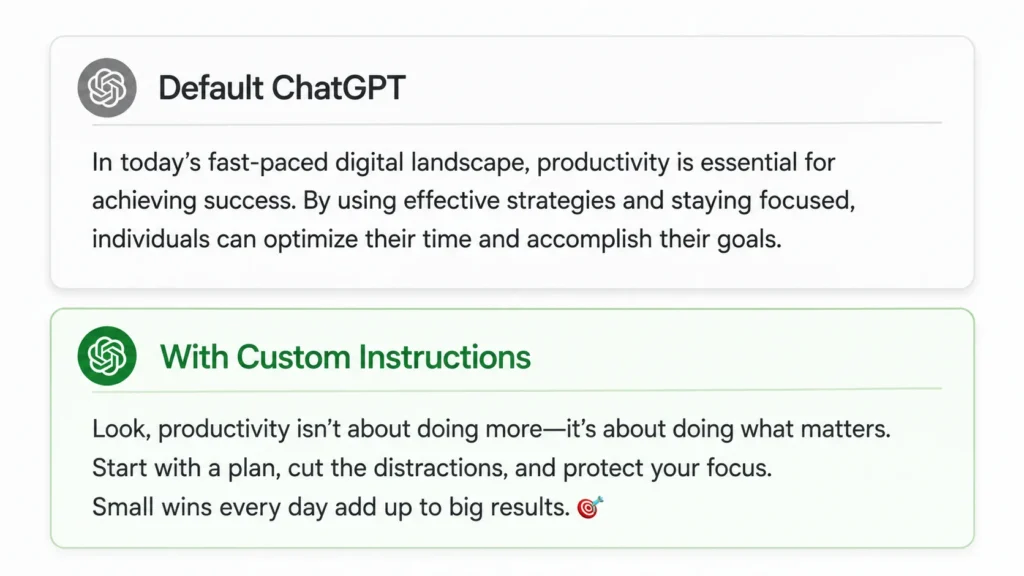
Writers who study this call it the median user problem. The model splits the difference between formal and casual, safe and bold, corporate and personal. What comes out the other end is technically correct and completely forgettable. Nobody talks like ChatGPT’s default voice. Not because it’s wrong. Because it belongs to no one.
Your actual voice is not a middle ground. You have specific patterns. Phrases you reach for. Sentence lengths you favour. Things you would never, ever say. An email to your landlord does not sound like a caption for your best friend’s birthday post — and generic custom instructions don’t capture that difference.
This is exactly why AI writing sounds generic for almost everyone who tries the basic settings once and gives up.
ChatGPT Custom Instructions: The Basic Setup
Before the advanced method, get the basic setup right. This is where every guide to ChatGPT custom instructions should start — and usually where it also stops, which is the problem.
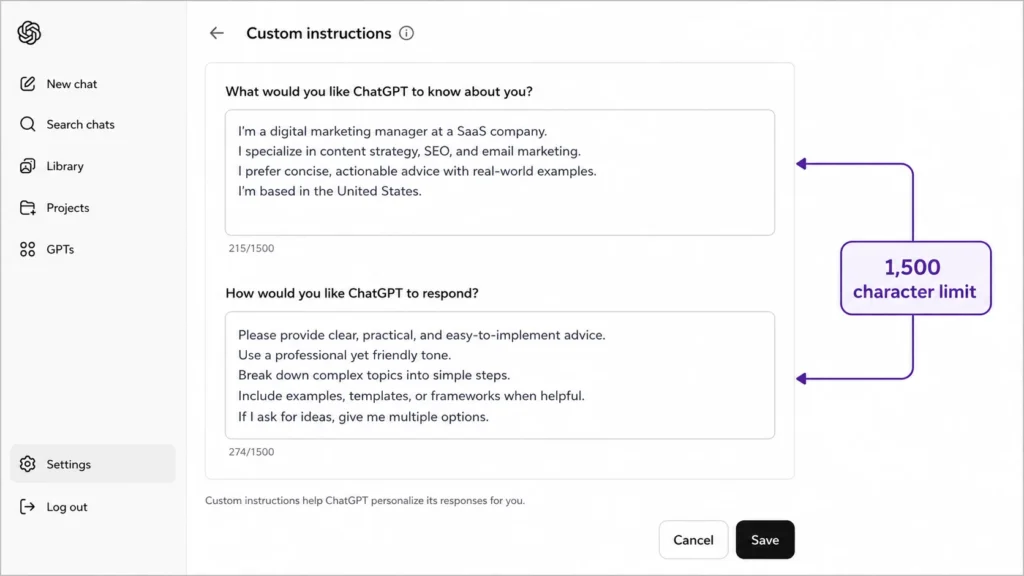
Step 1 — Open the settings. Click your name in the bottom-left corner of ChatGPT. Select Custom Instructions. Two boxes will appear.
Step 2 — Fill Box 1: “What would you like ChatGPT to know about you?” This is context, not tone. Who you are, what you do, who reads your writing.
Example: “I run a small handmade candle business in Lahore. I write product descriptions, Instagram captions, and customer emails. My audience is mostly women aged 25–45.”
Step 3 — Fill Box 2: “How would you like ChatGPT to respond?” This is where tone lives. Be specific, not vague.
Weak: “Be casual and friendly.” Strong: “Write in short sentences. Avoid exclamation marks unless I use one first. Never say ‘elevate,’ ‘unlock,’ or ‘game-changer.’ I write like I’m talking to a friend, not selling something.”
Step 4 — Save and test it. Ask ChatGPT something simple. Compare it to how the same request sounded before you set this up. The difference should be immediate, even at this basic level.
There is a hard limit here worth knowing: Custom Instructions cap out at 1,500 characters per box. That is not a lot of room to describe an entire voice from scratch — which is exactly why the next method matters more.
The Writing Sample Method: How to Actually Make ChatGPT Sound Like You
Here is what almost nobody tells you: describing your tone in your own words rarely works. You know your voice too well to describe it accurately. “Casual but professional” means something different to everyone who types it.
The fix is to stop describing your voice and start showing it.
Step 1 — Gather 3 to 5 samples of your actual writing. Emails, blog posts, captions, anything you wrote and were happy with. Real writing, not a first draft you hated.
Step 2 — Open a fresh ChatGPT conversation and paste this analysis prompt:
“Analyze my writing below in the following categories: Syntax and Grammar, Vocabulary and Diction, Tone and Voice, Imagery and Figurative Language, Rhythm and Pace. Provide one sentence per category. Include one example from my writing that represents each pattern.
[paste your writing samples here]”
Step 3 — Read the analysis. It will surprise you. ChatGPT will notice things about your writing you never consciously chose — how often you use short sentences, whether you favour questions, your specific verbal tics. This is the part that makes write in your own voice with AI actually work.
Step 4 — Paste that analysis directly into Box 2 of Custom Instructions. Not a summary. Not your own paraphrase. The actual output. This is what turns a vague personality description into an explicit set of rules ChatGPT can follow.
Step 5 — Add what you never do. This part gets skipped constantly, and it matters just as much as what you do write. Do you never use exclamation points? Never start with “I think”? Always avoid emojis in professional messages? List those exclusions explicitly.
This two-part method — analysis plus exclusions — is the difference between ChatGPT sounding “kind of like you” and ChatGPT sounding like you wrote it yourself at 11pm on your worst writing day.
Custom Instructions vs Memory vs Custom GPTs
People confuse these three features constantly. Here is how they actually differ, and when to use which one.
| Feature | What It Does | Best For | Persists Across Chats? |
|---|---|---|---|
| Custom Instructions | Sets your default voice and context for every new chat | Your baseline voice for all writing | Yes, automatically |
| Memory | Remembers specific facts ChatGPT picks up during conversations | Ongoing projects, preferences you mention casually | Yes, but selective |
| Custom GPTs | A dedicated assistant built for one specific task | Repeated workflows, like “LinkedIn Post Writer” | Yes, within that GPT only |
The simplest way to think about it: Custom Instructions is your foundation — it runs before every single conversation. Memory adds detail on top as you go. Custom GPTs are specialised tools you build once for a specific job, like a GPT that only writes in your brand voice for social captions.
Most people only need Custom Instructions, set up properly with the writing sample method. Add a Custom GPT later if you find yourself repeating the same specific task — like writing product descriptions — often enough that a dedicated setup saves real time.
→ See also: How to Use ChatGPT for Beginners: The Complete Guide
Real Before and After Examples
Talk is cheap. Here is what actually changes.
Prompt used for both: “Write a short Instagram caption announcing our shop is closed for a public holiday.”
Default ChatGPT (no custom instructions):
“We hope you’re having a wonderful day! Please note that our shop will be closed in observance of the upcoming public holiday. We appreciate your continued support and look forward to serving you again soon! 🎉”
With custom instructions, using the writing sample method:
“Closed today for the holiday. Back tomorrow at 10am, restocked and ready. See you then.”
Same request. Same AI model. Completely different person on the other end of it. The second version sounds like an actual shop owner typed it between customers, not like a corporate social media template.
That gap is what how to make ChatGPT write like you actually solves — and it is the difference between AI output you have to rewrite entirely and AI output you can publish with one small tweak.
What This Won’t Fix
Being straight with you here, because most guides oversell this.
Custom instructions won’t make ChatGPT remember every single conversation detail forever. That is what Memory is for, and it is a separate setting. Turn it on in Settings → Personalization if you want that layer too.
It won’t make your writing undetectable by AI detection tools. That is not the goal here, and any guide promising that is selling you something. The goal is writing that sounds like you because it reflects your actual patterns — not writing that tricks a checker.
It won’t work instantly on the first try. Expect to refine your Box 2 instructions two or three times as you notice what still feels slightly off. Treat it like training a new assistant, not flipping a switch.
Frequently Asked Questions About Making ChatGPT Write Like You
Q: How do I make ChatGPT write like me?
A: The most reliable way to make ChatGPT write like you is the writing sample method: paste 3 to 5 pieces of your own writing into a fresh chat, ask ChatGPT to analyze the syntax, vocabulary, tone, and rhythm, then paste that analysis directly into your Custom Instructions. This works far better than trying to describe your own tone in your own words, because most people describe their writing less accurately than an analysis of the actual text does.
Q: Where do I find ChatGPT custom instructions?
A: Click your profile name in the bottom-left corner of ChatGPT on desktop, then select Custom Instructions from the menu. On mobile, tap your profile icon, then Settings, then Personalization. ChatGPT custom instructions apply automatically to every new conversation once saved — you do not need to re-enter them each time.
Q: Why does my ChatGPT still sound generic after adding custom instructions?
A: Usually because the instructions are too vague. Phrases like “be casual” or “sound professional” don’t give the model enough to work with — AI writing sounds generic whenever the input is generic. Replace vague descriptors with explicit rules: specific sentence lengths, words you never use, whether you use exclamation points, how you open messages. The writing sample method in this guide solves this directly.
Q: Is there a character limit for ChatGPT custom instructions?
A: Yes. Each box has a 1,500-character limit. This is part of why pasting a full writing-pattern analysis works better than trying to write a from-scratch description of your voice — the analysis is denser and more specific per character than a general description would be.
Q: Do custom instructions work the same way in Claude and Gemini?
A: The underlying idea does — most major AI tools let you set default context and tone preferences. The exact settings location and character limits differ by platform, but the writing sample method (analyze real samples, paste the analysis into your personalization settings) works across ChatGPT, Claude, and Gemini equally well.
Q: Will custom instructions slow down ChatGPT’s responses?
A: No. Custom instructions are read once at the start of a conversation and have no meaningful impact on response speed. There is also no cost to using them — the feature is available on ChatGPT’s free plan, not just Plus subscribers.
Fifteen Minutes. That Is the Whole Investment.
You do not need a course on prompt engineering to fix this. You need three of your own emails, one analysis prompt, and two settings boxes.
Open ChatGPT right now. Pull up three things you wrote recently that actually sound like you. Run the analysis prompt. Paste the result into Custom Instructions.
That’s it. The next thing you ask ChatGPT to write will sound less like a chatbot and more like you had a very fast, very capable version of yourself typing it out.
Want more ChatGPT techniques that actually move the needle? Browse our full library of AI guides at GetFuturix.com.
Related articles on GetFuturix: