How to Organize Your Inbox With AI: Zero Email Stress Method
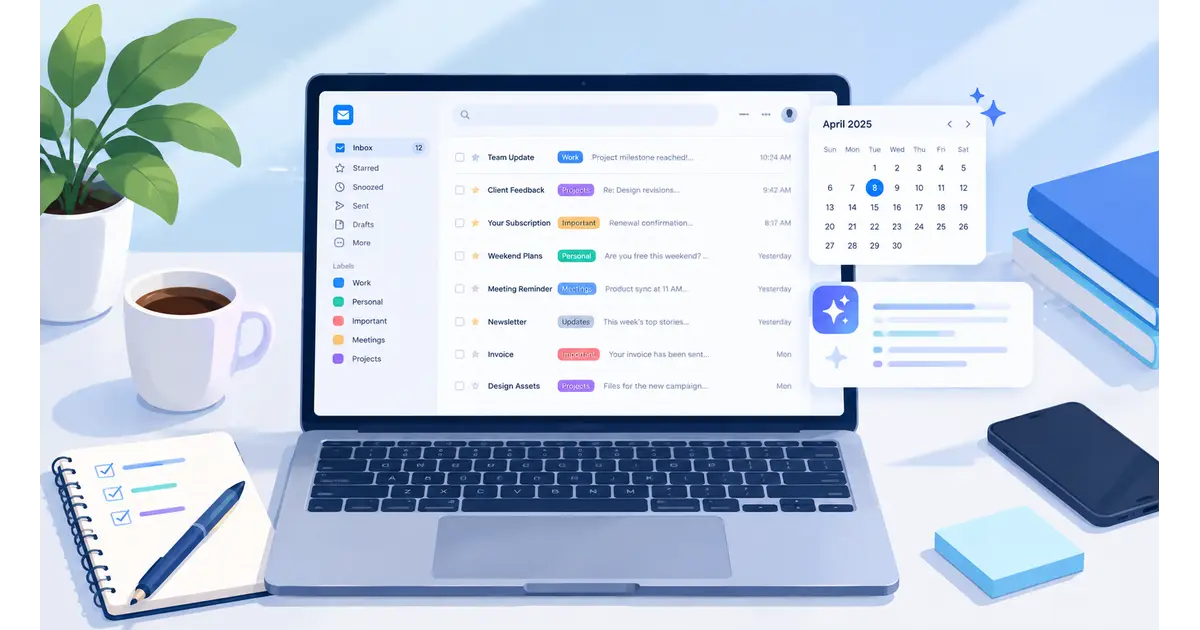
My inbox used to open with a wince — 300-plus unread messages, a client reply I’d forgotten, and a meeting starting in six minutes I hadn’t prepped for. Using AI to organize emails automatically is what finally broke that cycle, and not because the AI “cleaned up” my inbox once. It’s because it built a system that kept working after I closed the laptop.
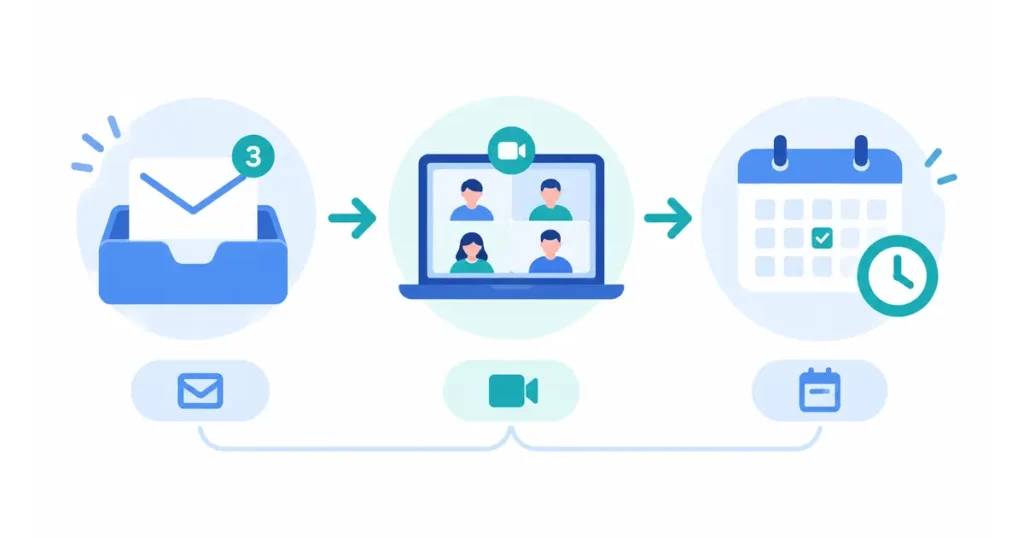
This guide isn’t another “12 best email apps” roundup. It’s the actual system I use — and the one hundreds of professionals in remote and hybrid roles have adopted — that connects three things AI is genuinely good at: sorting your inbox, capturing your meetings, and defending your calendar. Get those three working together and “zero email stress” stops being a slogan.
Table of Contents
Why Your Inbox Feels Impossible to Control in 2026
Before you touch a single tool, it helps to know you’re not imagining the problem. The math genuinely stopped working somewhere around 2020, and AI adoption is a direct response to that, not a fad.
Here’s what the data says about where your time actually goes:
- The average professional receives around 121 emails a day and sends roughly 40 — a structural gap no amount of personal discipline can close.
- Knowledge workers lose close to 28% of the workweek to email-related tasks: reading, sorting, replying, and re-reading the same threads.
- After a single email interruption, it takes about 23 minutes to fully return to the focus level you had before, according to UC Irvine research on interrupted work.
- Roughly 70% of workers name email as their top source of workplace stress, and 40% say they’re carrying 50 or more unread messages at any given time.
- Microsoft’s own telemetry, published in its Work Trend Index, shows employees getting pinged by a meeting, email, or notification roughly every two minutes.
None of that is a personal failure. It’s a volume problem, and volume problems need automation, not willpower.
The Real Problem With “Inbox Zero” (And Why AI Fixes It)
Inbox Zero has a branding problem. Merlin Mann coined the term back in 2006, and the “zero” was never meant to describe your unread count — it meant zero unresolved decisions sitting in your head.
Somewhere along the way, that got flattened into “empty inbox as a trophy,” and that version of the method is actively counterproductive at 2026 email volumes. Manually triaging 120-plus messages a day down to a literal zero takes two to three hours most people simply don’t have.
The goal was never an empty screen. It was an empty mind. AI is what makes that version of “zero” achievable again at today’s email volume.
This distinction matters because it changes what you’re optimizing for. You’re not trying to get an AI tool to delete your way to zero unread messages — you’re trying to get it to make every message either invisible (filed, archived, snoozed) or actionable (flagged, drafted, scheduled) without you touching most of them by hand.
The Zero Email Stress System: Three Layers That Work Together
Most guides cover exactly one piece of this. The reason your inbox still feels chaotic even after trying an AI email tool is usually that you fixed one layer and left the other two completely untouched.
Here’s the full system:
| Layer | What it handles | The AI’s job |
|---|---|---|
| 1. Inbox | Incoming email volume | Sort, label, archive, draft |
| 2. Meetings | What happens after a call | Transcribe, summarize, extract action items |
| 3. Calendar | Where your time actually goes | Protect focus time, auto-schedule, reduce conflict |
Skip Layer 2, and every meeting dumps a wall of follow-up email back into Layer 1. Skip Layer 3, and your calendar keeps eating the focus time you just freed up. You need all three working together, or the system leaks.
If you only do one thing this week, get AI to organize your emails automatically first — it’s the layer with the fastest, most visible payoff.
Layer 1 — Get AI to Organize Emails Automatically
This is the foundation, and it’s also where most people stop after installing one tool and calling the job done.
How AI email sorting actually works
Modern tools that organize emails automatically do two fundamentally different things, and it’s worth knowing which is which before you pick one:
- Rule-based AI filters read a plain-language instruction (“archive anything from LinkedIn notifications”) and apply it consistently — a smarter version of a classic email filter.
- Agent-style AI assistants read the content and context of a message — sender history, thread length, your past replies — and make a judgment call about priority, category, or whether it needs a drafted response.
You want both working together. Rules handle predictable noise like newsletters, receipts, and automated alerts. Agent-level AI handles the judgment calls, like whether a client email is genuinely urgent or can wait until tomorrow.
The best AI tools for automatic email organization in 2026
| Tool | Best for | Standout feature | Starting price |
|---|---|---|---|
| Shortwave | Gmail-only power users | Natural-language AI filters + AI search | Free tier; Business from $24/seat/mo |
| Superhuman Mail | Speed-focused professionals | Keyboard-driven triage, AI auto-labels | From $30/user/mo |
| SaneBox | Low-effort, privacy-friendly filtering | Sorts by behavior, doesn’t read message content | From $7/mo |
| Gemini in Gmail | Existing Google Workspace users | Native summaries, no new app to learn | Included in eligible Workspace/Google AI plans |
| Microsoft Copilot (Outlook) | Microsoft 365 organizations | Thread summaries, tone coaching, triage | Included in eligible M365 plans |
| Inbox Zero (open source) | Privacy-conscious, technical users | Self-hostable, fully transparent code | Free to self-host; paid cloud tiers available |
Pricing changes often, so verify current numbers on each vendor’s site before committing.
Step-by-step: set up your first AI filter today
- Pick one high-volume category first. Newsletters, automated notifications, or CC threads are usually the easiest win.
- Connect your inbox using OAuth, not your email password, so you can revoke access later without changing your credentials.
- Write your filter instruction in plain language. For example: “label anything from a no-reply address as Low Priority and skip the inbox.”
- Let it run for three to five days before adjusting anything. Most AI sorting tools need real data to calibrate accurately.
- Add a second category only once the first is working reliably. Stacking five filters on day one is how people abandon these tools by day three.
Common mistakes when automating your inbox
- Over-automating on day one. Start with one or two rules, not fifteen.
- Auto-archiving client or manager email. Keep anything from a real, known human visible until you’ve built trust in the system. I learned this one the hard way — an over-broad rule buried a signed contract for four days before I caught it.
- Ignoring why something was misclassified. Correct it immediately; most tools learn from that correction and won’t repeat the mistake.
- Never reviewing the archive. Schedule a 10-minute check of your AI-sorted folder weekly for the first month.
Layer 2 — How to Use Otter.ai for Meetings (So Notes Stop Flooding Your Inbox)
A large share of “email overload” is actually meeting overflow: recap emails, action-item follow-ups, and “just confirming what we discussed” threads. Fixing this is part of fixing your inbox.
Setting up Otter.ai for Zoom, Google Meet, and Teams
Otter’s own quick start documentation covers platform-specific edge cases, but here’s the setup in practice:
- Create your Otter.ai account and connect your Google or Microsoft calendar under Settings.
- Turn on OtterPilot for each platform you use. Zoom, Google Meet, and Microsoft Teams are all supported natively.
- Confirm the auto-join permission. OtterPilot needs calendar access to know which meetings to join automatically.
- Rename your speakers after your first real meeting. Otter defaults to generic “Speaker 1, Speaker 2” labels, and two minutes spent renaming saves hours of confusion later.
- Add custom vocabulary for industry terms, product names, or acronyms if you’re on a paid plan. Transcription accuracy improves noticeably once you do.
Getting more out of Otter AI Chat
Otter’s AI Chat feature lets you ask questions across a single meeting or your entire meeting history: “What did the client agree to on pricing?” or “Summarize every decision from this week’s stand-ups.” This is the piece that actually reduces your inbox load, because it replaces the “can someone send me the notes” email entirely.
Use it to generate a follow-up email draft directly from the transcript instead of writing one from memory. It’s faster, and it’s more accurate than your recollection of a meeting from three days ago.
Otter.ai limitations worth knowing before you rely on it
- Language support is narrow — English, French, and Spanish only, so multilingual teams need a workaround.
- The free plan caps you at 300 minutes a month, with a 30-minute limit per single conversation.
- Microsoft 365/Exchange support has gaps compared to Gmail and standard Outlook, so check your specific setup before assuming full compatibility.
- Speaker identification improves over time, but large group calls with many participants can still produce mix-ups early on.
Layer 3 — Choosing the Best AI Calendar Assistant in 2026
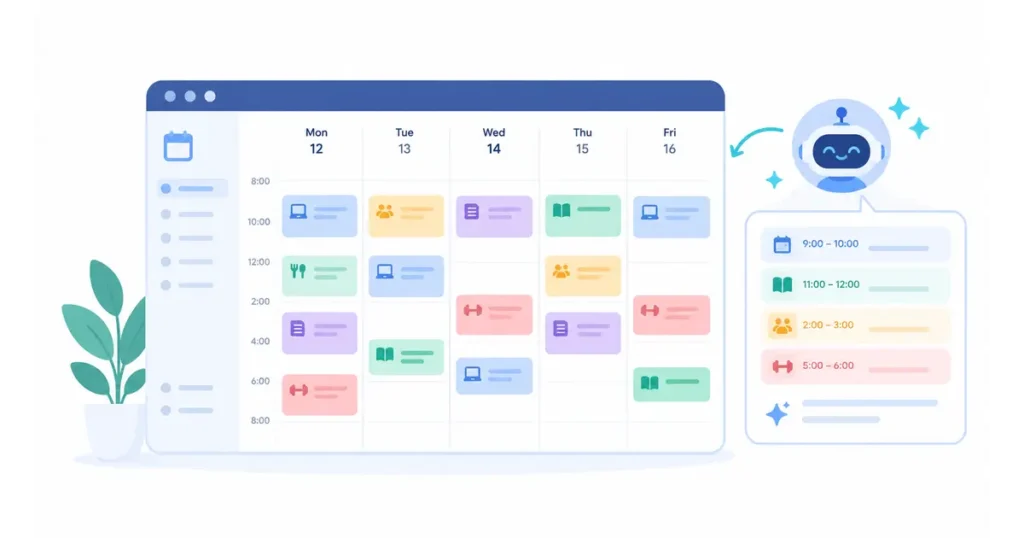
Once your inbox is sorted and your meetings stop generating follow-up noise, your calendar is the last leak. If anyone can book over your focus time, Layers 1 and 2 don’t matter nearly as much.
One thing to know before you compare tools
If you’re researching this space and keep seeing Clockwise recommended, know that Salesforce acquired the company and shut the product down on March 27, 2026. If you were a Clockwise user, Reclaim.ai is the closest replacement for focus-time protection, and several vendors have offered migration discounts to former Clockwise customers.
Comparing the best AI calendar assistants
| Tool | Best for | How it works | Starting price |
|---|---|---|---|
| Motion | Full-day auto-scheduling | Rebuilds your entire day around deadlines and priority | Paid plans only — check current pricing at motion.app |
| Reclaim.ai | Defending focus time | Blocks habits, tasks, and deep work before meetings can steal the slot | Free tier; paid from $12/seat/mo |
| Morgen | Cross-platform task + calendar hub | Pulls tasks from Notion, ClickUp, and Todoist into a time-blocked plan | Free tier; Pro plans vary, roughly $9–15/mo |
| Akiflow | Manual control, fast capture | Universal task inbox with drag-to-calendar scheduling | From around $19/mo |
| Google Calendar / Copilot (native) | Users who don’t want a new app | Built-in AI features inside tools you already use | Included in eligible plans |
How to choose based on your actual situation
- You want AI to plan your whole day for you → Motion.
- You just need meetings to stop eating your deep-work blocks → Reclaim.ai.
- Your tasks live scattered across three different apps → Morgen.
- You want speed and control rather than full automation → Akiflow.
- You’d rather not learn a new interface at all → the AI features already inside Google Calendar or Outlook.
No AI calendar assistant replaces judgment on genuinely high-stakes scheduling calls — it can’t tell you that today isn’t the day to double-book your VP. Use it for the logistics, and keep the nuanced decisions for yourself.
How to Use AI for Time Management: The Daily and Weekly Cadence
Tools alone don’t create the “zero stress” feeling. A repeatable rhythm does. Here’s the cadence that makes all three layers actually stick.
The 10-minute daily triage
- Morning (5 minutes): Open your AI-sorted inbox, not your raw inbox. Handle only what’s flagged as needing action today.
- Before you close out (5 minutes): Check your AI calendar assistant’s proposed adjustments for tomorrow, and approve or override them.
The weekly reset (30 minutes, same time every week)
- Review anything your AI email tool auto-archived, to catch misclassifications early.
- Ask your AI assistant to summarize the week’s meetings and flag any commitments without a calendar block yet.
- Adjust your filters and calendar rules based on what actually happened, not what you assumed would happen.
Prompt examples that make AI for time management genuinely useful
Feed your AI assistant something specific instead of a vague request:
“I have these five tasks due this week: [list]. I focus best before 11am and I have back-to-back meetings on Tuesday. Build me a realistic time-blocked schedule with buffer time between meetings.”
Specific inputs — your real energy patterns, your actual constraints, your genuine deadlines — produce dramatically better output than a generic “help me plan my week.” 100 ChatGPT Prompts has a longer library of prompts if you want to go deeper here.
Before You Connect Your Inbox: A Quick Privacy Checklist
Granting an AI tool access to your email is a real decision, not a formality. Run through this before you connect anything:
- Use OAuth, never your password. Legitimate tools never ask for your raw email credentials.
- Check for SOC 2 Type 2 certification and GDPR/CCPA compliance if you handle client or regulated data.
- Confirm whether your data trains their models. Reputable vendors let you opt out, and some don’t train on customer content at all.
- Review the permission scope, not just “connected or not.” Some tools request read-only access; others request send-on-your-behalf access, which is a much bigger trust decision.
- Know how to revoke access before you grant it — through your Google or Microsoft account security settings, not just the vendor’s app.
Which Setup Fits Your Situation?
| You are… | Start with | Skip for now |
|---|---|---|
| A freelancer or solo founder | SaneBox + Otter.ai free tier + Reclaim free tier | Full Motion auto-scheduling |
| A manager drowning in meetings | Shortwave or Superhuman + Otter.ai Pro + Reclaim | Heavy custom AI filter rules |
| An exec with very high email volume | Copilot or Gemini native tools + Otter.ai Business + Motion | Anything requiring a brand-new inbox interface |
| A remote team lead | Team-tier AI email tool + shared Otter workspace + Morgen | Individual-only free tiers |
When AI Organization Backfires (And How to Fix It)
AI email tools fail in a small number of predictable ways. Knowing them in advance saves you from abandoning a genuinely good system after one rough week.
- The AI misfiled something important. This almost always means your rule was too broad. Narrow the instruction instead of turning automation off entirely.
- You’re getting more notifications, not fewer. Some tools alert you about every action they take by default. Turn that off in settings — the entire point is not having to watch it work.
- Your team doesn’t trust the drafted replies. Start AI drafts on low-stakes, repetitive replies only, and expand from there as confidence builds.
- You automated everything at once and it feels chaotic. Roll back to a single layer, get it stable for a week, then add the next one.
FAQ’s about AI to organize emails
Can AI organize my Gmail or Outlook inbox automatically?
Yes. Gmail users can use Gemini’s native features or a dedicated tool like Shortwave or SaneBox, while Outlook users have Microsoft Copilot built in, plus third-party options like Superhuman. Both platforms support OAuth-based AI email organizers.
Is Otter.ai free to use for meetings?
Otter.ai has a free Basic plan with 300 transcription minutes a month and a 30-minute cap per conversation. Paid plans remove those caps and add features like custom vocabulary and deeper AI Chat access.
What replaced Clockwise after it shut down?
Reclaim.ai is the closest direct replacement for Clockwise’s focus-time protection, and Motion is the closest option if you also want full-day auto-scheduling layered on top of calendar defense.
How much time can AI actually save on email and scheduling?
Reported figures vary by tool and workload, but several vendors and productivity studies cite AI email triage cutting inbox processing time by roughly 60 to 80%, with calendar automation reclaiming several additional hours a week previously lost to manual scheduling and conflict resolution.
Is it safe to give an AI tool access to my email?
It’s reasonably safe with reputable, OAuth-based tools that carry SOC 2 or equivalent certification, but you should always check permission scope, confirm whether your content trains their models, and know how to revoke access before connecting anything.
Do I need all three layers, or can I just start with one?
Start with one. Inbox sorting is the highest-impact layer for most people, and it’s where you’ll feel the fastest relief. That said, the full “zero stress” feeling really shows up once meetings and calendar are handled too, since an unprotected calendar or a flood of meeting-recap email will quietly undo the progress you make in your inbox alone.
Your First Week With This System
Don’t try to implement all three layers simultaneously. Set up one AI email filter on day one, add Otter.ai to your next scheduled meeting, and connect a calendar assistant by the end of the week.
By day seven, you’ll have a real system running — not a screenshot-worthy empty inbox, but something better: an inbox, a calendar, and a meeting record that all keep working while you’re not watching them.
→ See also: Free 5 AI Tools for Daily Workflow 2026