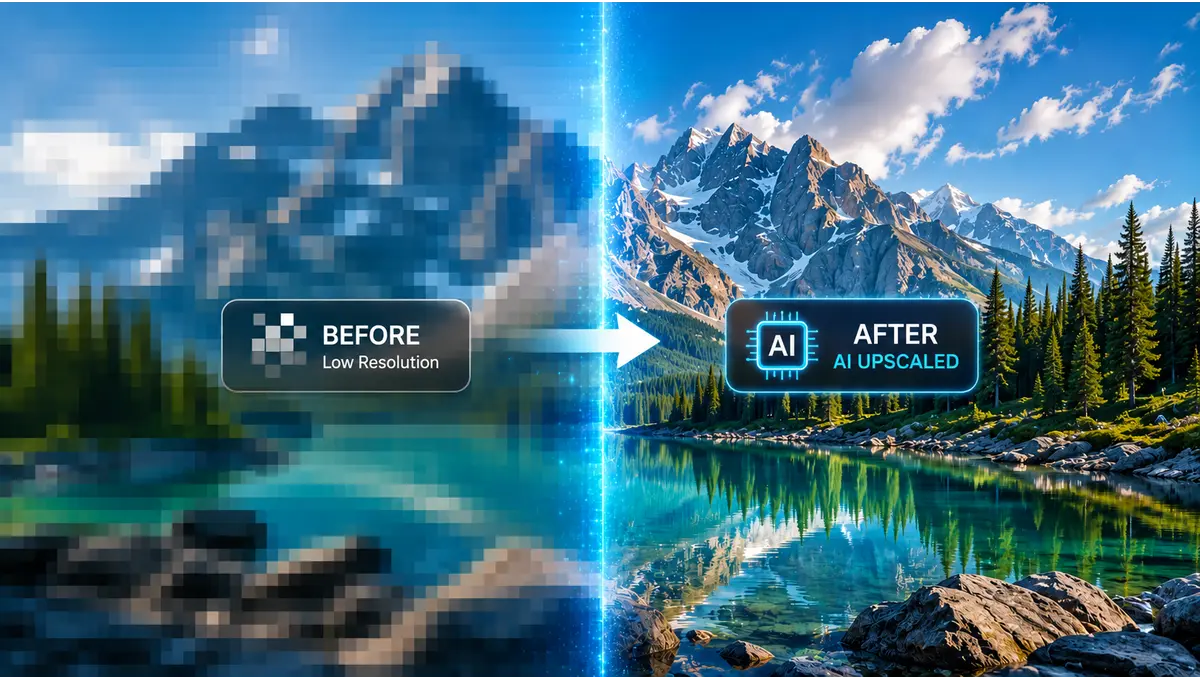
I upscaled 40-plus blurry photos last month without paying a cent, and three of the five “free” tools I tried turned out to have serious catches.
Some context: I run a small print-on-demand shop on the side. Customers kept asking why product photos looked soft when they zoomed in. That sent me down a two-week rabbit hole testing every free way to upscale images with AI free, plus the ai background-removal and ai headshot tools that keep coming up in the same breath.
Here’s what actually works, what the catch is on each one, and how to use them without wrecking your images.
Table of Contents
The Quick Answer (For Skimmers)
If you want the single best free AI image upscaler without reading the whole comparison, it’s Upscayl. No watermark, no signup, no catch.
Full shortlist:
- Best overall, no strings attached: Upscayl — free, open-source, runs on your own computer.
- Best for anime, art, and illustrations: Bigjpg — browser-based, no install.
- Best for testing photo-specific AI models: Let’s Enhance — 10 free credits, no card required.
- Best for combining upscaling with AI generation: Krea — free daily credits, one canvas for both.
- Best all-in-one, mobile-friendly pick: Morphic — upscaling and background removal in one place.
Keep reading for free-tier limits, the actual steps, and the mistakes that make upscaled images look worse, not better.
What’s Actually Happening When AI “Upscales” an Image
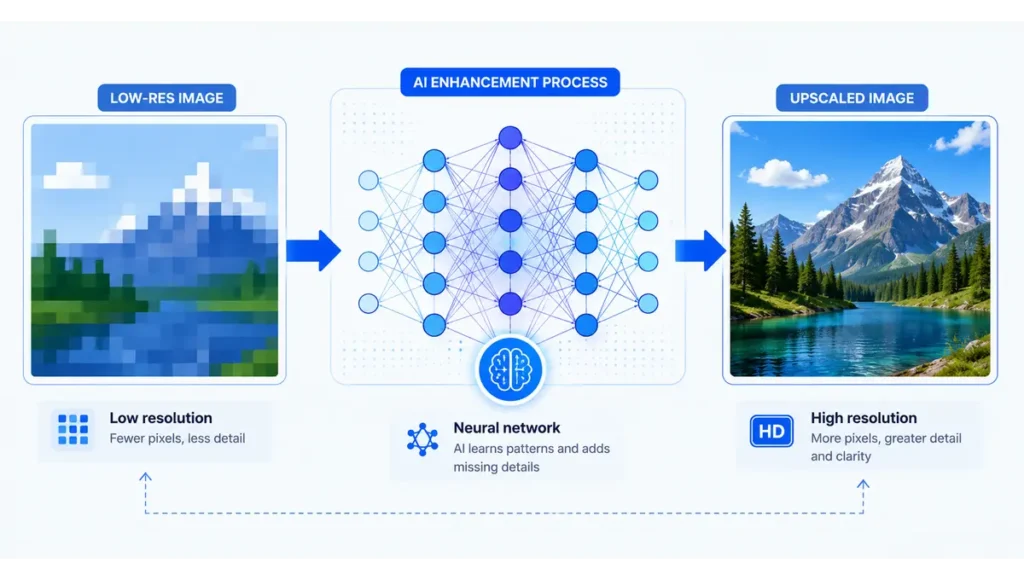
Old-school resizing just stretches pixels. That’s why a stretched photo looks soft and blocky, like zooming into a security camera feed.
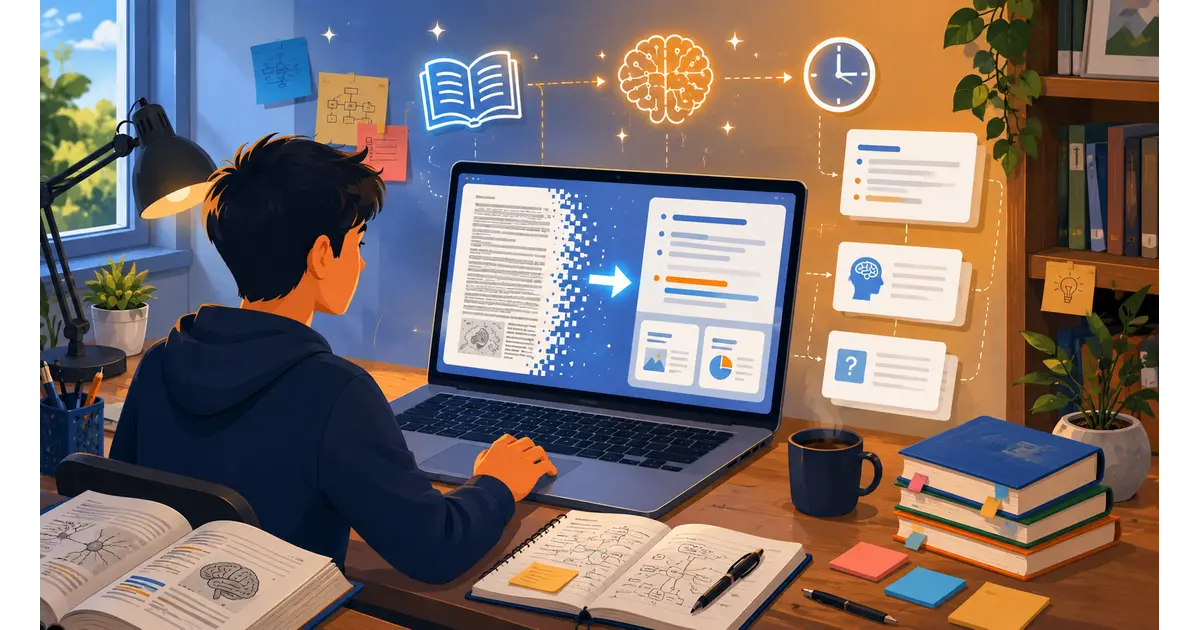
AI upscaling works differently. A neural network gets trained on millions of low-res and high-res image pairs, so it learns to recognize edges, hair, fabric, and texture, then reconstructs plausible detail at the new size. Ultralytics’ technical breakdown of super resolution covers the mechanics if you want the deeper version.
That word “plausible” matters. The AI isn’t recovering detail a camera actually captured. It’s predicting what probably belongs there.
Good models predict well. Bad ones give you waxy skin and smeared text.
How I Tested These 5 Tools
Same three images, every tool: one blurry phone photo, one small product shot from my shop, and one piece of AI-generated art.
I checked four things each time:
- What “free” actually means — credits, watermarks, resolution caps, signup requirements
- Output quality at 2x and 4x
- Speed, upload to download
- Whether the free tier is usable, or just a taste before a paywall
I also ran a batch test, ten images at once, since that’s closer to how a small shop actually uses these tools than a single hero photo ever is.
A few tools I initially considered didn’t make the cut. Several sites market themselves as “the best free upscaler” in their own comparison post, grading themselves the winner. That’s a red flag, not a recommendation. I left those out in favor of tools with a reputation independent of their own marketing copy.
The 5 Free AI Upscalers Worth Using in 2026
1. Upscayl — Best Overall Free Upscaler
Upscayl is a genuinely free, open-source desktop app for Windows, macOS, and Linux. No watermark. No usage cap. No subscription, ever.
It runs entirely on your own GPU using Real-ESRGAN models, so your images never leave your computer. That’s a real privacy advantage over browser tools, and it’s part of why the project has earned over 44,000 GitHub stars.
What you get:
- Six AI models: General Photo, UltraSharp, Remacri, Ultramix Balanced, High Fidelity, and Digital Art
- 2x–4x per pass, chainable up to 16x total
- Batch folder processing for dozens of images at once
- PNG or JPEG export, no watermark
The catch: you need a Vulkan-compatible GPU. Older laptops and most Chromebooks won’t run it well, and there’s a real install step. This isn’t a drag-drop-download browser tool.
Best for: anyone with a decent GPU who wants zero ongoing cost and doesn’t mind installing an app once.
2. Bigjpg — Best for Anime, Art, and Illustrations
Bigjpg runs in your browser, built on the same lineage as the original Waifu2x anime-upscaling models. No install.
It handles clean-line artwork — anime, manga, digital illustrations, logos — better than most general photo upscalers, since the underlying model trained specifically on that kind of content.
What you get:
- Browser-based, nothing to install
- Batch upload support
- Clean output, no obvious watermark on the free tier
The catch: free-tier resolution and volume are capped, and results on realistic photos are noticeably weaker than on illustrations. Use it for art. Not your family photos.
Best for: artists and hobbyists upscaling anime, illustrations, or line art.
3. Let’s Enhance — Best for Testing Photo-Specific Models
Let’s Enhance gives new users 10 free credits at signup, no credit card required. Enough to genuinely test quality on your own photos before deciding anything.
It runs several specialized models, including one built specifically for old, damaged photos and another for digital art, with more headroom on paid tiers.
What you get:
- 10 free credits, 1 credit = 1 image
- Multiple content-specific models: photo, old photo, digital art
- Background removal available as an add-on
The catch: 10 credits disappear fast if you’re testing multiple images, and the free tier’s resolution ceiling is lower than the paid plans.
Best for: photographers and e-commerce sellers who want to compare AI models before committing to a paid plan.
4. Krea — Best for Combining Upscaling With AI Generation
Krea packages upscaling into a single creative canvas alongside dozens of AI image and video models. You get free daily credits, no card required.
If you’re already generating AI art or product mockups and need to upscale the result for print, staying in one tool instead of exporting and re-uploading saves real time.
What you get:
- Free daily credits, refreshed daily
- One-click upscale from inside the same canvas you generate in
- Access to a large model library beyond just upscaling
The catch: it’s built for AI creators first. If all you want is a simple photo upscaler, the extra surface area is more than you need.
Best for: creators who generate AI images regularly and want upscaling built into that workflow.
5. Morphic — Best All-in-One, Mobile-Friendly Pick
Morphic runs entirely in the browser, works on a phone as easily as a desktop, and bundles upscaling with background removal and photo restoration in the same free credit pool.
What you get:
- Free daily compute credits, no card required
- Upscaling up to 4K with flexible 2x targets
- Works on photos, screenshots, artwork, and AI-generated images
- Background removal built in — handy for the next section
The catch: like most credit-based tools, heavy daily use bumps you into the paid tier faster than a single-purpose app would.
Best for: anyone who wants upscaling and background cleanup without juggling two separate tools.
Quick Comparison Table
| Tool | Free Tier | Max Output | Platform | Best For |
|---|---|---|---|---|
| Upscayl | Unlimited, free forever | 16x (chained) | Windows/Mac/Linux | Zero-cost, privacy-first |
| Bigjpg | Free with limits | Up to 16x (art) | Browser | Anime & illustrations |
| Let’s Enhance | 10 credits, no card | 16MP+ | Browser | Testing photo models |
| Krea | Free daily credits | Varies by model | Browser | Upscale + AI generation |
| Morphic | Free daily credits | Up to 4K | Browser + mobile | All-in-one, mobile |
if you want a deeper breakdown of paid upscalers like Topaz Gigapixel for professional print work.
How to Actually Upscale Images With AI Free (Step-by-Step)
The workflow is nearly identical across every tool on this list.
- Pick your source image. JPEG or PNG both work.
- Upload it. Drag-and-drop on browser tools, or open the file directly in Upscayl’s desktop app.
- Choose your model. Photo, art, or anime — matching the model to the content matters more than people expect.
- Set your scale factor. 2x is the safest choice for most images.
- Preview before you commit. Most tools show a before/after. Zoom into eyes, hands, or text — that’s where AI models fail first.
- Export and download.
A Quick Note on File Formats
JPEG already has compression baked in, and every re-save adds more. If your source image is a JPEG that’s been through a few rounds of editing, expect the AI to have less real detail to work with.
PNG is lossless. Use it as your source format when you have a choice. Export your final upscaled file as PNG if file size isn’t a concern, or JPEG if you need something smaller for web use.
How Much Should You Actually Upscale?
Don’t pick “4x” just because it sounds thorough. Work backward from what you actually need.
Target pixel width ÷ current pixel width = the scale factor you need.
A 1,000px product photo going onto a listing that needs 2,000px for zoom to activate only needs 2x. Not 4x. Not 8x. Overshooting doesn’t add real detail — it just gives the AI more room to invent things that weren’t there.
The Staged-Upscaling Trick
Need 8x or more? Don’t do it in one jump.
Upscale 2x, then upscale the result another 2x, then again if needed. Two or three smaller passes consistently preserve more real detail than one giant leap. It’s the same logic behind Upscayl’s own “Double Upscayl” chaining feature.
Why Your Upscaled Image Still Looks Bad
AI upscaling has real limits, and no tool on this list breaks them.
- Severely blurry or out-of-focus source photos stay blurry. The AI can sharpen edges that exist. It can’t invent focus that was never captured.
- Heavy JPEG compression confuses the model. Compression artifacts look like “detail” to the AI, so it sometimes sharpens the noise instead of the image.
- Faces and text break first. Zoom into eyes, teeth, and any text in the image before you trust the result.
There’s a real debate among researchers about whether upscaled detail counts as “real” at all, since the model is technically predicting texture rather than recovering it. VentureBeat’s explainer on super resolution gets into that argument if you want the full version.
If your source is genuinely low quality, upscaling makes it bigger. Not necessarily better. That’s a realistic expectation, not a knock against these tools.
Is It Safe to Upload Your Photos?
Depends on the tool, and this is the part most guides skip.
Browser-based upscalers process your image on someone else’s server, even if they delete it afterward. For casual social photos, that’s a non-issue. For sensitive work files, ID-adjacent photos, or anything under an NDA, it’s worth pausing on.
Upscayl is the one tool on this list that never uploads anything. Processing happens locally on your GPU. It’s the same privacy logic behind on-device features like Microsoft’s Super Resolution in Photos, which deliberately keeps the AI model on-device instead of routing it through the cloud.
Bonus: How to Remove Background With AI for Free
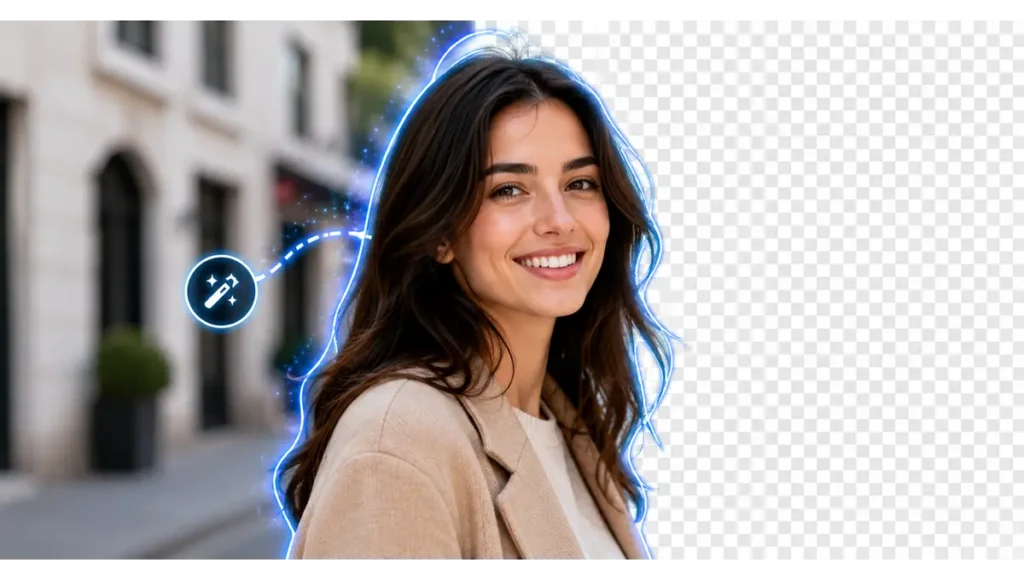
This comes up constantly once your image is bigger and cleaner: now you want the background gone too.
Two names show up again and again, independent of each other:
- Remove.bg — the most established name in this space, with strong edge detection on hair and fur. The free tier caps output at a small resolution, so a full-size download usually needs a paid credit.
- Adobe Express Background Remover — free with an Adobe account, unlimited removals, no watermark, backed by the same Sensei AI engine behind Photoshop’s cutout tools.
If you used Morphic to upscale, its background removal shares the same free credit pool. One less tool to juggle for a full walkthrough on prepping product photos for marketplace listings.
→ See also: How to Remove Background with AI Free in 2026 (No Watermark)
What About a Free AI Headshot Generator in 2026?
Since this comes up in the same breath as upscaling, here’s the honest version.
Free AI headshot generators exist, but most use a generic model, not one trained on your specific face. Results look professional in the abstract without necessarily looking like you. Paid tools that train a custom model on 10-20 of your photos consistently produce a closer likeness.
What’s genuinely free right now:
- Google’s Gemini app (the “Nano Banana” image model) can turn a selfie into a professional-style portrait with the right prompt, with a daily free limit and a visible watermark.
- Canva’s free tier includes basic headshot-style generation, though it’s more limited than its paid AI tools.
If a free result looks close enough for your LinkedIn photo, great. If you need it to look unmistakably like you, that’s usually where free tools hit their ceiling.
→ See also: Free AI Headshot Generator 2026: No-Pay Guide for our full guide on picking a professional profile photo.
Quick Clarification: AI Upscalers vs. AI Image Generators
These get confused constantly, so let’s separate them.
An AI upscaler — Upscayl, Bigjpg, everything above — takes an image you already have and makes it bigger and cleaner. It doesn’t invent a new scene.
An AI image generator creates a brand-new image from a text prompt instead. Some of the best free AI image generators in 2026, like Google Gemini and Adobe Firefly, offer a generous daily allowance with no watermark, which is worth knowing if what you actually need is a new image, not a bigger version of an old one.
If you’re not sure which you need: do you already have the photo? Upscaler. Are you starting from nothing but an idea? Generator.
FAQ about Upscale Images With AI Free
Is there a completely free way to upscale images with AI?
Yes. Upscayl has no watermark, no usage cap, and no subscription. It’s free indefinitely, provided your computer has a compatible GPU.
What’s the best free AI upscaler for photos versus art?
Let’s Enhance and Morphic handle real photos better. Bigjpg is built specifically for anime and illustration work.
Will AI upscaling fix a blurry photo?
It can sharpen mild softness. It can’t recover detail from a photo that was genuinely out of focus or badly motion-blurred when it was taken.
Do free AI upscalers add a watermark?
It depends on the tool. Upscayl, Bigjpg, and Morphic’s free tiers don’t add one. Some paid tools’ free trials do, specifically to push you toward upgrading.
Is it safe to upload personal photos to an online upscaler?
For casual photos, generally yes. For sensitive images, use a tool that processes locally, like Upscayl, so your file never leaves your device.
Can I remove the background and upscale an image in the same tool?
Yes. Morphic and Let’s Enhance both offer background removal alongside upscaling in the same account.
How many times can I upscale an image before it looks fake?
Past 4x-6x on a real photo, most models start inventing texture that wasn’t in the original. Stick to the smallest scale factor that actually meets your resolution need.
I’ve run every one of these through my own images, not just their marketing pages, and Upscayl is still the one I reach for first. But the right pick genuinely depends on whether you’re working with a photo, an illustration, or something you’re about to generate from scratch.
Want more practical AI guides for small business owners? Browse our full library at GetFuturix.com.
Related articles on GetFuturix: