Create Logo With AI for Free
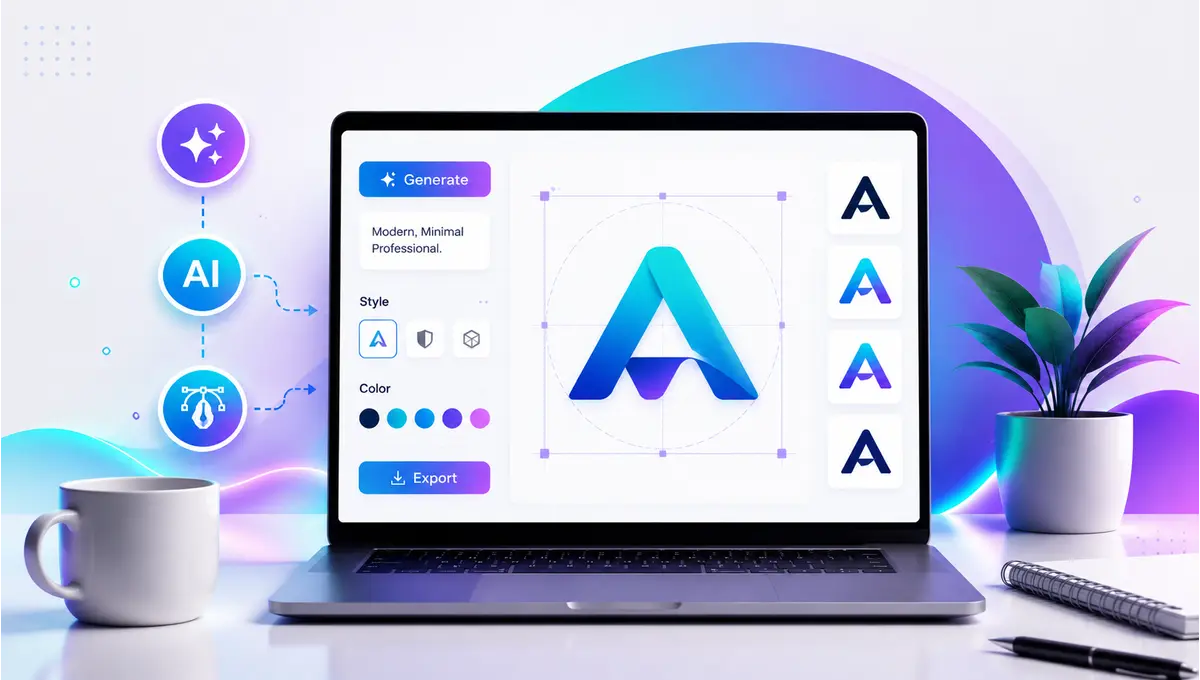
Creating a logo with AI for free takes about ten minutes, and you don’t need a single design skill to pull it off.
I know that sounds like ad copy. It’s not. I ran this exact process for a friend’s candle business three weeks ago. She’d been sitting on a $400 freelancer quote for two weeks, dreading the back-and-forth emails. We had a usable logo before her coffee got cold.
Quick context before we start: a freelance designer typically runs $100–$500 for something simple, more for an agency package with a full brand guide. AI skips that invoice entirely. It also skips a human thinking strategically about your market position — worth knowing upfront, not as a downside, just as an honest trade-off.
Here’s the short version. Then we’ll go deep, tool by tool.
Quick answer:
- Fastest fully-free option: Canva’s Magic Media / Dream Lab — free credits every month, plus a genuinely free download
- Best for logos with text baked in: Ideogram, one of the few tools that reliably spells your business name correctly
- Best “unlimited generations”: Recraft or LOGO.com — but read the ownership terms first
- Biggest trap to avoid: Looka lets you design for free, then charges $20+ the moment you try to download anything
- The legal reality: you can trademark an AI logo; you generally can’t copyright one. More on that below, because it matters more than most guides admit.
Table of Contents
Dedicated Logo Makers vs. General AI Image Generators
Every other guide skips this decision, and it’s the first one that actually matters.
Dedicated logo makers — Looka, LogoAI, Recraft’s logo mode, LOGO.com — ask a few quick questions about your business, then generate output that’s already been steered to look like a logo. Icons, wordmarks, layout: all pre-shaped for you.
General AI image generators — Canva’s Magic Media, Ideogram, Google Gemini, Adobe Firefly — will create literally anything you describe. You have to specifically prompt for “logo,” and you do more of the creative steering yourself.
Here’s what that looks like in practice. Type “logo for a bakery” into Looka and you’ll get a wheat-icon-plus-wordmark combo in under thirty seconds, because that’s the exact lane it’s built for. Type the same phrase into a general image generator and you might get a photorealistic loaf of bread or a poster design — neither of which is a logo, because you didn’t ask specifically enough.
My rule: no clear idea yet, use a dedicated logo maker. Already picturing something specific, use a general image generator instead.
Canva’s AI Text-to-Image Tool: A Free Step-by-Step Tutorial
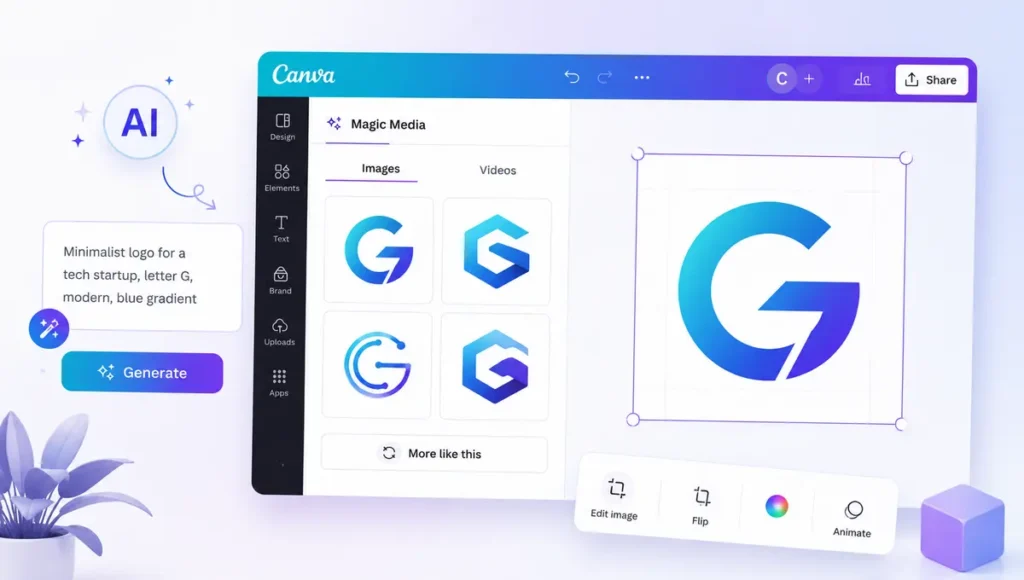
This is the one I recommend to almost everyone first, because Canva is one of the few tools here that lets you design and download for free.
Canva’s AI text-to-image tool lives under two related names: Magic Media and Create an image, powered by Dream Lab. Free accounts get a working monthly allotment of AI credits to use across both.
The step-by-step process
- Log into Canva (a free account works fine) and open Magic Media or Dream Lab from the AI tools menu.
- Write a prompt that describes your brand, not just your industry. “Coffee shop logo” gets you a generic mug icon. “Minimalist wordmark for a third-wave coffee roaster, warm terracotta and cream, small hand-drawn bean icon” gets you something you’d actually use.
- Pick a style preset. For logos, stick to Flat Illustration or Line Art. Photorealistic and 3D styles almost never translate into usable logos.
- Set your aspect ratio to square (1:1) so it works everywhere from favicons to profile pictures.
- Generate. You’ll get four options per prompt.
- Refine with a short follow-up instead of rewriting everything — “simplify the icon” or “remove the text” works better than starting over.
- Run it through Canva’s free background remover, then export as a transparent PNG.
That’s the whole process. No software to install, no account tier required beyond free.
Why your first few attempts might come out wrong
Text is the weak point of almost every AI image generator, Canva included. Ask for a wordmark and there’s a real chance your business name comes back misspelled or garbled.
If your business name has to appear crisp and correct inside the image itself, skip straight to Ideogram. It processes text through a dedicated rendering pipeline instead of treating letters like any other pixel pattern, and it’s noticeably more reliable for wordmarks than general-purpose tools.
For icon-only logos, this barely matters. Generate the icon, then add your business name as a real text layer inside Canva’s editor afterward. That’s actually the more reliable method for most small businesses anyway, since you get to pick the exact font yourself.
The Best Free AI Logo Tools, Compared
| Tool | Free to Design | Free to Download | Vector File Free? | Best For |
|---|---|---|---|---|
| Canva (Magic Media/Dream Lab) | Yes | Yes (PNG) | No, Pro only | Beginners who want one tool for everything |
| LOGO.com | Yes, unlimited | Yes (PNG, full commercial rights) | No | Fastest genuinely-free download |
| Recraft | Yes, unlimited | Yes, but limited ownership rights | Yes (SVG) | Testing many styles fast |
| Looka | Yes, unlimited | No — $20 minimum just to download | No, paid only | Full brand kits, if you’re paying anyway |
| Adobe Express | Yes (credit-based) | Yes | No | Anyone already using Adobe tools |
| Ideogram | Yes (daily credits) | Yes (PNG) | No | Logos where text has to be perfect |
Start with the “Best For” column, not the feature list. Most small businesses land on Canva or LOGO.com by default and only reach for Ideogram or Recraft for a specific reason — text accuracy or style variety. Free-tier terms shift often in this space, so double-check each tool’s current policy before you build a brand around it.
The “Free” Trap Nobody Mentions
Most roundups rank these tools by feature count and stop there. Three details matter more than any feature list.
Can you actually download without paying? Design is free almost everywhere. Downloading is where the tools split into two camps. Canva, LOGO.com, Ideogram, and Adobe Express hand you a usable file at zero cost. Looka doesn’t — you can spend an hour perfecting a design in their editor, then hit a paywall the second you click download.
Do you actually own what you made? Free doesn’t always mean it’s yours. Recraft’s free tier, for instance, adds your generations to a public community gallery by default. Full ownership and commercial rights require a paid plan.
Does the free output carry a watermark? A few tools tuck a small mark into free downloads, which defeats the purpose if you’re using it as an actual brand asset. None of the tools in the table above do this, but it’s worth checking before you try something new.
None of this is a dealbreaker. It’s just the fine print top-ranking articles routinely leave out.
Can You Actually Own or Trademark an AI Generated Logo?
This is the question every small business owner should ask before printing a single business card, and most AI logo tutorials never bring it up.
Copyright and trademark protect different things, and AI-generated logos interact with each one differently. The U.S. Copyright Office’s current position is that purely AI-generated output, without meaningful human creative input, isn’t eligible for copyright registration. That doesn’t stop you from using the logo — it just means the raw image may not be legally “yours” the way a hand-drawn design would be.
Trademark law works differently. It doesn’t care how the logo was made. It cares whether the logo functions as a distinctive identifier for your business and whether you’re actually using it commercially. An AI-generated logo can be trademarked, and plenty have been, successfully.
Here’s the actual risk: AI models are trained on enormous datasets of existing logos and artwork. Your “unique” result can unintentionally echo something that already exists, closely enough to cause a real conflict. IP attorneys writing about AI-generated branding flag this as the top concern, not a hypothetical edge case.
One more practical wrinkle: if your logo is mostly your business name in a stylized font, your trademark protection leans more on the name itself than on the specific artwork around it. If your logo relies on a distinctive icon, that visual mark carries more of the legal weight — which is exactly why the training-data risk above matters more for icon-heavy logos than for plain wordmarks.
My actual advice, not a disclaimer:
- Run your finished logo through the USPTO’s trademark search tool before you commit to it publicly. It’s free and takes about ten minutes.
- Make a few manual edits to your AI output — a different font, a recolor, a tweaked icon. Human modification strengthens both your originality and your claim to whatever copyright protection is available.
- If a lot is riding on this logo — funding, franchising, national retail — get a trademark attorney to sign off before launch. This is one case where a few hundred dollars of legal advice is cheaper than a rebrand later.
Quick disclaimer, because it’s worth saying plainly: I’m not a lawyer, and none of this is legal advice. For anything trademark-critical, talk to one. For the full policy detail, the Copyright Office’s AI and Copyright page is the primary source worth reading directly.
5 Prompt Formulas That Actually Work for Logos
Generic prompts produce generic logos. Here’s what I actually type.
- The Wordmark — “[Business name] in [font style], [1–2 colors], minimalist, no icon, transparent background”
- The Icon + Name — “[Simple icon description] paired with ‘[Business Name]’ in clean sans-serif, flat vector style, [color palette]”
- The Mascot — “Minimalist [animal/character] mascot for [business type], flat illustration, thick outlines, [2 colors]”
- The Emblem — “Circular badge logo for [business name], [industry] iconography, monochrome line art, vintage style”
- The Abstract Mark — “Abstract geometric symbol representing [concept], single color, simple enough to work as a tiny icon”
The candle-shop prompt that actually worked: “Minimalist wordmark logo for ‘Ember & Oak,’ hand-poured candle company, warm serif font, terracotta and cream colors, small flame replacing the dot on the ‘i,’ flat vector style, transparent background.” Four regenerations to get the flame placement right. Still faster than waiting on a designer’s first draft.
One thing to skip: words like “modern” or “clean” on their own. Every AI logo tool defaults to that anyway. Spend your words on specifics instead — exact colors, one real object tied to your business, a named art style.
The Scalability Test Almost Nobody Runs
Before you commit to any AI-generated logo, shrink it.
Take your favorite result down to 32×32 pixels, favicon size. Then view it as a circular profile picture, the way it’ll actually appear on Instagram or Google Business.
AI image generators love fine detail — subtle gradients, thin linework, tiny embellishments. All of it disappears at small sizes. A logo that looks stunning at full resolution can turn into a muddy smudge the moment it hits a browser tab.
Survives the shrink? Use it. Doesn’t? Regenerate with a simpler prompt — fewer colors, thicker lines, one focal element — instead of trying to manually rescue an overly detailed design.
Bonus: Free AI Product Photo Background Generators for Your New Brand
Here’s what almost every “how to make a logo” guide leaves out entirely: your logo is one piece of a visual identity, not the whole thing. The moment you’re selling anything — a physical product, a portfolio, a service page — you need consistent photography too.
Canva’s own free AI background generator works almost like Dream Lab in reverse. Upload a product photo, describe a scene — “marble countertop, soft natural light” or “outdoor picnic, golden hour” — and it composites a new backdrop around your product automatically.
Photoroom and Pixelcut both run generous free tiers built specifically for this. Background removal is instant, and you can preview several AI-generated backdrops before picking one.
A few things that actually matter once you’re doing this for real:
- Match the lighting direction. If your product photo was shot with light from the left, describe a background lit the same way. Mismatched lighting is the single biggest tell that gives away an AI background.
- Reuse the same prompt or template across your whole catalog. Consistency between shots matters more than any one photo being perfect.
- Keep your new logo’s color palette in mind when picking backgrounds, so your product pages and your branding read as the same company.
→ See also: How to Remove Background with AI Free in 2026 (No Watermark)
The Best Free AI Image Generators in 2026 (Beyond Dedicated Logo Tools)
If Canva and the dedicated logo makers don’t land on the exact concept in your head, a general AI image generator is worth the detour.
Google Gemini currently runs one of the more generous free tiers around for versatile, straightforward output, and it’s a natural fit if you’re already living in Google’s ecosystem. Adobe Firefly is the one to reach for if commercial-use certainty matters specifically to you — it’s trained only on licensed Adobe Stock and public domain material, which sidesteps a chunk of the training-data concerns covered above. Ideogram, again, for anything where the text has to be perfect.
Whichever you choose, export as a transparent PNG, then bring it into Canva for cleanup. This two-tool combo — general generator for the visual, Canva for text and polish — solves most of the “why does my AI logo look almost right” problem on its own.
→ See also: List of Best AI Tools for Small Business
FAQ: What People Actually Ask
Is there a truly 100% free AI logo maker?
Yes. Canva and LOGO.com both let you design and download without paying, ever. “Free to design” isn’t the same guarantee, though — Looka in particular only lets you download after you pay.
Can I use an AI-generated logo for my business commercially?
Generally yes, but check the specific tool’s terms first. Some free tiers, Recraft’s included, don’t grant commercial rights unless you upgrade, even though generating the image itself costs nothing.
Which AI tool is best for a logo that includes text?
Ideogram, clearly. Most general-purpose image generators still struggle to spell business names correctly inside a generated image.
Do I need Photoshop or Illustrator after generating an AI logo?
No. Canva’s free editor handles background removal, resizing, and adding text layers — which covers what most small businesses actually need.
Why does my AI logo look like everyone else’s?
Generic prompts produce generic logos. Add specifics: your real brand colors, an object tied to your actual business, an unusual style word like “brutalist” or “art deco,” instead of just typing your industry name and stopping there.
How long does this whole process realistically take?
Fifteen to thirty minutes for a first usable result, including a few regenerations. Building a full brand kit — business cards, social templates, matching product backgrounds — takes closer to an hour, still zero dollars.
Should I ever just hire a real designer instead?
If your brand is complex, you’re raising investment, or you want a strategist thinking about market position rather than just an icon, yes. AI logo tools solve the “I need something usable now, on no budget” problem. They’re not a replacement for brand strategy at scale.
Should I actually worry about trademark issues with an AI logo?
Worth a ten-minute check, not a panic spiral. Run it through USPTO’s free search tool before you commit to it publicly, especially if you’re trademarking your business name too.
What I’d Actually Do If I Were Starting Today
Skip the analysis paralysis. Open Canva, use Magic Media or Dream Lab, and run three or four specific prompts using the formulas above. Pick your favorite.
Shrink it down and check it survives the scale test. Run a quick trademark search. Done.
That’s the entire process. No designer, no invoice, no two-week wait. Just don’t skip the trademark search — that’s the one step that actually protects you later.
Related articles on GetFuturix: