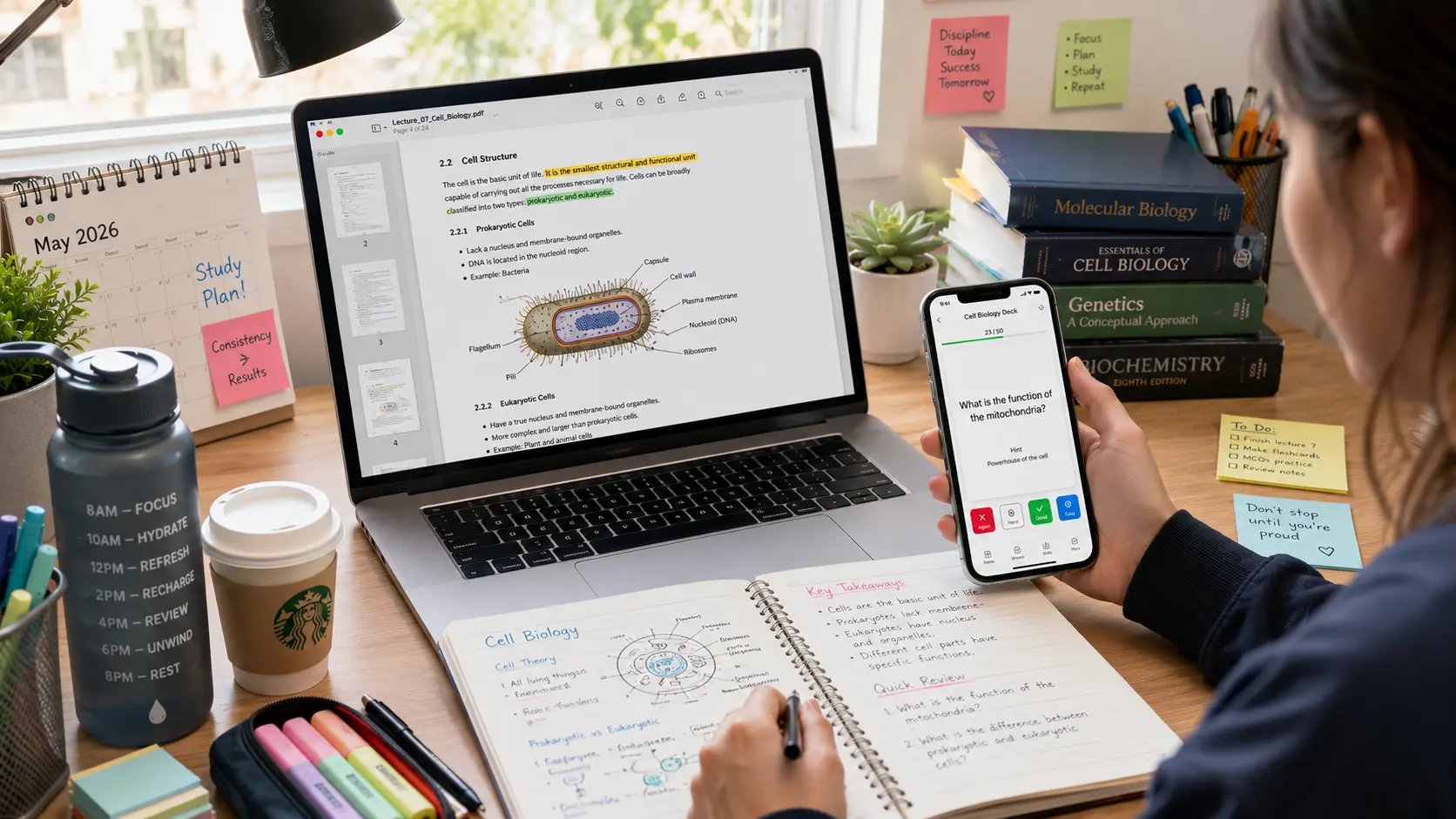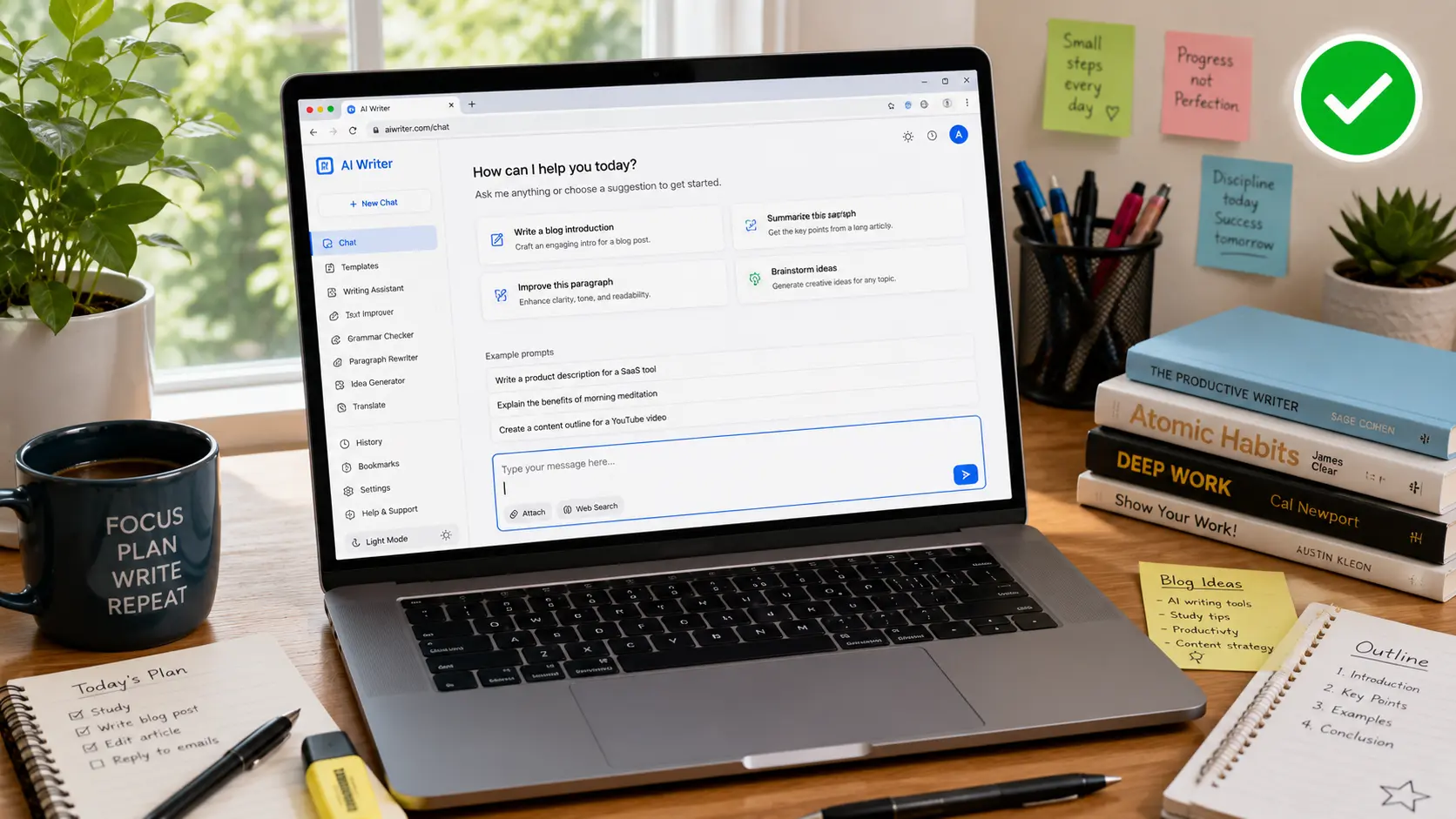
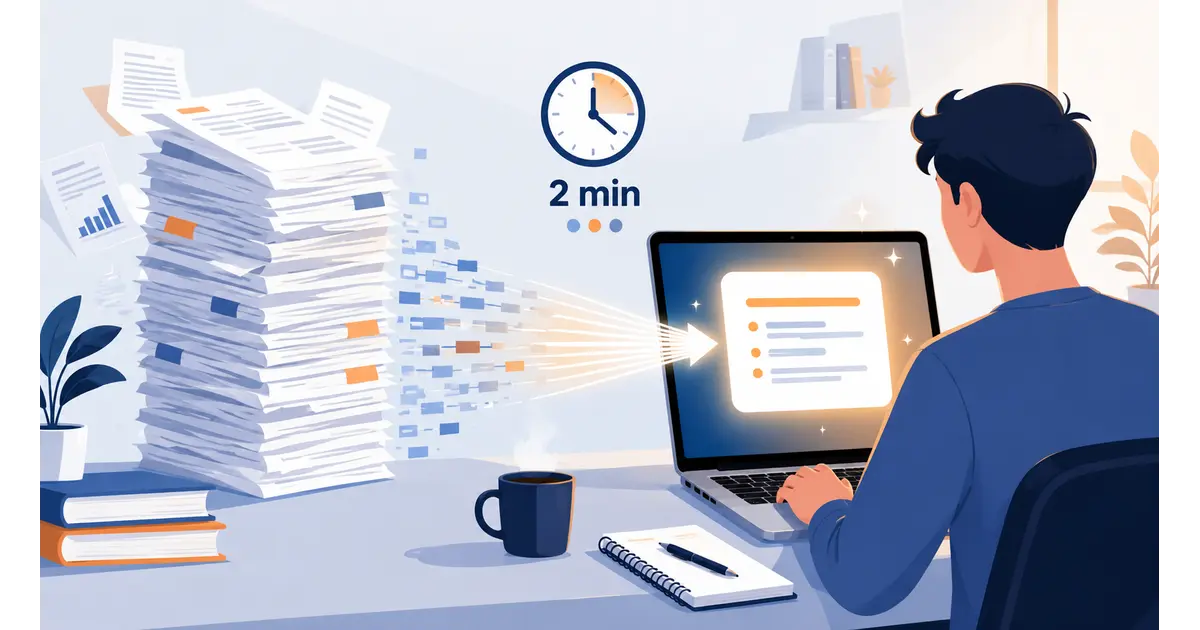
I once spent an entire Sunday buried in a 47-page vendor contract, highlighter in one hand, cold coffee in the other. That was the last time I did it the hard way.
These days, I know how to summarize documents with AI in under two minutes, and it works whether you’re picking up your first AI tool ever, running a small business with zero spare hours, or just trying to clear your inbox before the next meeting starts.
This isn’t another “10 best AI tools” roundup. I’m going to walk you through the exact workflow I use, which tools are actually worth your time, and — the part most guides skip entirely — how to tell when an AI summary is quietly wrong.
Table of Contents
What Does It Mean to “Summarize With AI”?
An AI summarizer reads a document and hands back the key points in a fraction of the original length, so you don’t have to read the whole thing first.
Modern tools do more than just shorten text. A good AI summarizer will:
- Pull out the main ideas, decisions, and action items instead of just trimming sentences
- Preserve structure — headings, bullet points, or an executive-summary format, depending on what you ask for
- Handle multiple formats, including PDFs, Word docs, slide decks, meeting transcripts, and even scanned pages once OCR (optical character recognition) converts the image to text
- Run on large language models like GPT, Claude, or Gemini, usually wrapped in a purpose-built interface designed just for documents
That last point matters more than people realize. The engine behind most AI summarizers is one of a handful of foundation models — what actually differs between tools is the workflow layered on top: file handling, citation tracking, and how well the tool keeps context across a long document. Google Cloud’s overview of AI summarization breaks down the underlying approaches if you want the more technical version. That’s really the short version of how to summarize documents with AI — the tools below are where the real differences start to show up.
How to Summarize Documents With AI in Under 2 Minutes (Step by Step)
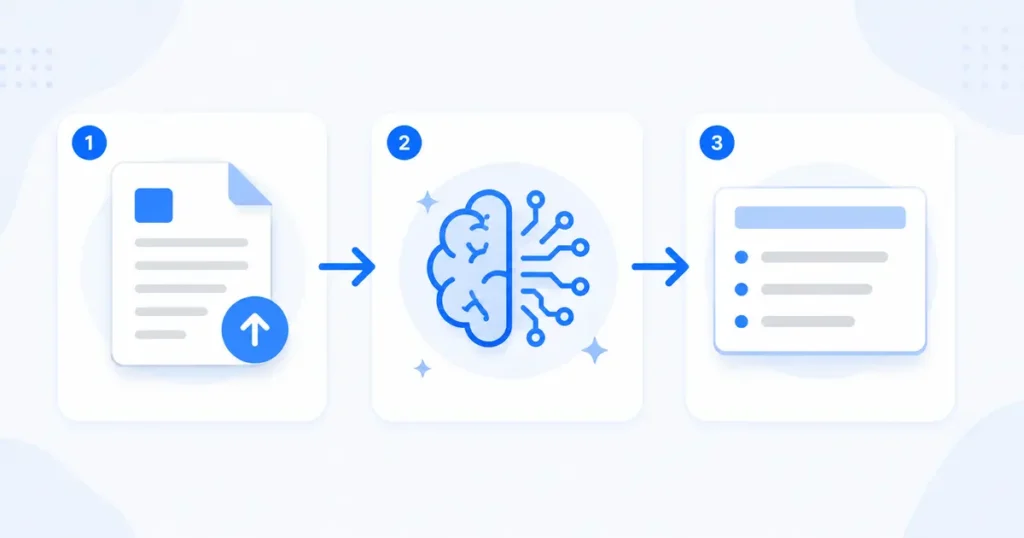
Here’s the exact process, start to finish, for turning a long document into a usable summary in about the time it takes to read this section.
- Match the tool to the document type. Use a general chatbot (ChatGPT or Claude) for a one-off report, a dedicated PDF tool for scanned files, or Notion AI if the document already lives in your workspace.
- Upload or paste the document. Most mainstream tools now accept drag-and-drop PDFs running into the hundreds of pages, though very long files may get split into sections behind the scenes.
- Give it a specific prompt, not just “summarize this.” Try something like: “Summarize this contract in 5 bullet points, focused on payment terms, deadlines, and any auto-renewal clauses.”
- Set the output format you actually want. Ask for bullet points, a 3-sentence executive summary, or a table of key terms — the model will follow the format if you name it.
- Verify the summary against the source before you act on anything that matters, like a number, date, or commitment.
My rule of thumb: if a summary changes a decision, a number, or a deadline, I open the original document and check that one line myself. It takes fifteen seconds and has saved me from acting on a made-up figure more than once.
Steps 1 through 4 genuinely take under two minutes for most documents under 50 pages. I tested this on a 12-page client onboarding packet last week — upload to summary took 40 seconds, and the output caught a deadline I would have skimmed right past. Step 5 is non-negotiable, and I’ll show you exactly how to do it quickly in the accuracy section below.
The Best AI Tools for Summarizing Documents (And Who Each One Fits)
There’s no single “best” tool. The right pick depends on where your documents already live and how much control you want over the output.
| Tool | Best For | Free Tier | Typical Doc Length | Standout Feature |
|---|---|---|---|---|
| ChatGPT | General-purpose summaries, quick Q&A follow-up | Yes | Up to a couple hundred pages (paid tiers) | Conversational follow-up questions |
| Claude | Long, dense documents; nuanced writing | Yes | Handles very long context well | Strong at preserving tone and nuance |
| Google NotebookLM | Research across multiple sources at once | Yes | Multiple documents simultaneously | Every claim links back to its source |
| Notion AI | Summarizing content you already keep in Notion | No (bundled in paid plans) | Page-length content | Built into your existing workspace |
| Adobe Acrobat AI Assistant | PDF-heavy workflows, contracts, forms | Yes (limited) | Long, complex PDFs | Native PDF handling, no exporting |
Every tool on this list can summarize documents with AI reasonably well — the difference is where each one fits into a workflow you already have.
For beginners: start with whatever tool you already have a login for. ChatGPT’s free tier or Notion AI (if your workspace already includes it) will teach you the basics without a new subscription.
For professionals: Claude and NotebookLM tend to hold context better across genuinely long, dense material — think 80-page market reports or a folder of research papers you need synthesized into one brief. I reach for NotebookLM specifically when I need the summary to cite exactly which source backed up each claim.
For small business owners: Notion AI or Adobe’s Acrobat Assistant usually win, simply because they slot into tools you’re already paying for instead of adding another subscription. If your team runs on Google Workspace instead, Gemini’s built-in summarization inside Docs and Gmail covers similar ground for free.
How to Use Notion AI for Beginners (To Summarize Anything)

If your team already lives in Notion, you don’t need a separate summarization tool at all.
Here’s how to use Notion AI for beginners, step by step:
- Open any page with the content you want summarized, or paste in a long block of text.
- Select the text (or select nothing to summarize the whole page), then click the AI icon that appears.
- Choose “Summarize” from the menu. The summary appears in a floating panel you can edit, copy, or drop straight onto the page.
- For a faster shortcut, press the spacebar on an empty line to open the AI write/edit menu directly.
- Use Notion Q&A for anything spread across multiple pages — ask something like “summarize what we decided about the Q3 budget” and it searches your whole workspace and cites the pages it pulled from.
Notion’s AI features are bundled into its paid plans with usage-based credits rather than sold as a single flat add-on, and the exact structure has shifted more than once this year — Notion’s own getting-started guide keeps the current details up to date.
New to Notion entirely? [Guide is on the way] walks through workspace setup before you touch the AI features at all.
5 AI Tools That Can Basically Replace Google Docs
Here’s something I noticed while researching this piece: people search for AI tools to replace Google Docs for two completely opposite reasons, and almost no article addresses both.
Camp one wants more AI power than Google Docs currently offers built-in. Camp two wants to keep AI away from their writing entirely, often over data-training concerns. Here’s a tool worth trying for each situation:
- Notion — full AI summarization, Q&A, and writing tools built into a flexible workspace; good if you want maximum AI power in one place.
- Coda — a similar AI-plus-docs approach to Notion, with stronger built-in automation for teams.
- Zoho Writer — a solid AI writing assistant (Zia) bundled into a broader, budget-friendly office suite.
- Proton Docs — end-to-end encrypted with minimal AI involvement, built for Camp two readers who want privacy first.
- Zettlr — a genuinely AI-free, local-first markdown editor for anyone who wants zero AI anywhere near their drafts.
Before switching your whole team over, it’s worth reading on migrating documents without losing formatting or comment history.
→ See also: Free 5 AI Tools for Daily Workflow 2026
The Best AI Tools to Summarize Textbooks (For Students and Lifelong Learners)
Textbooks are a different beast than reports or contracts. They’re longer, denser, and usually need to be understood, not just skimmed.
For this use case, look for tools built around structured academic output rather than general chat:
- Chapter-by-chapter summarizers that extract definitions, key concepts, and formulas separately, so a study guide practically writes itself
- Flashcard-style outputs that turn dense chapters into interactive review cards instead of another wall of text
- Multi-source tools (like NotebookLM) that let you drop in several chapters or a whole syllabus and ask questions across all of it at once, with answers traced back to the exact page
One genuinely useful trick most beginners miss: ask the tool to summarize by learning objective instead of by page. A prompt like “list every formula in this chapter with a one-line explanation of when to use it” produces something far more study-ready than a generic summary.
→ See also: Free AI Writing Tools That Require No Sign Up in 2026
How Accurate Is AI Summarization, Really?
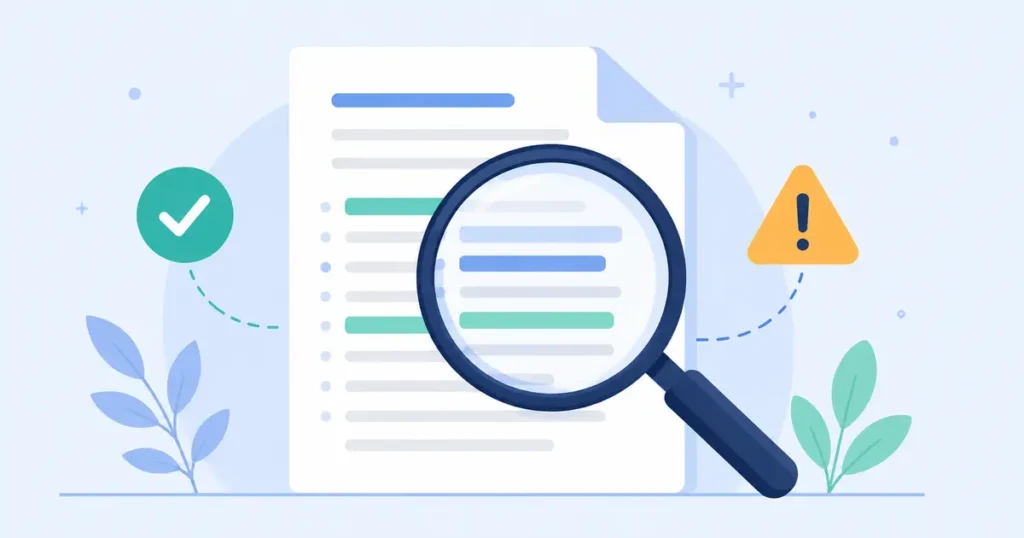
Short answer: accurate enough to save you time, not accurate enough to trust blindly on anything high-stakes.
Once you know how to summarize documents with AI properly, verifying the output is the last skill left to learn. There are two ways an AI tool can summarize text, and the difference matters:
- Extractive summaries pull exact sentences straight from the source — lower error risk, since nothing gets rewritten.
- Abstractive summaries rewrite the content in the model’s own words — more natural to read, but with more room for the model to introduce something the source never actually said.
Research on this problem, including work published in Scientific Reports, consistently finds that rewritten summaries carry meaningfully more risk of factual drift than extractive ones, especially as documents get longer and the model has to compress more material into fewer words.
I don’t summarize anything I’m about to sign, prescribe, or pay for without opening the source at least once. AI gets me 90% of the way there — the last stretch is still on me.
How to verify an AI summary in under 30 seconds:
- Check every number, date, and name against the source — these are the most common place hallucinations hide
- Watch for language that’s gotten more absolute than the original (“may cause delays” quietly becoming “will cause delays”)
- If the tool supports citations or source-linking (Notion Q&A, NotebookLM), always use that feature over a plain chat answer
- Never skip verification on legal, medical, or financial documents, no matter how good the tool’s reputation is
- Ask the tool to quote the specific line its summary is based on — if it can’t, treat that section with more suspicion
Common Mistakes That Make AI Summaries Useless
I’ve made every one of these mistakes myself, usually right before a deadline.
- Feeding it a scanned image with no OCR step first. The tool either fails silently or guesses at garbled text, and the summary quietly inherits the errors.
- Asking for “a summary” with no context. You’ll get something generic instead of what you actually needed, and you’ll waste a second round-trip fixing it.
- Dumping a 100-page document in one shot into a tool with a smaller context window, instead of summarizing it section by section and combining the results.
- Trusting the first output without a single follow-up question to test it against the source.
- Forgetting to say who the summary is for. A summary for your own reading is very different from one you’re about to forward to a client.
Frequently Asked Questions
Is there a free AI tool to summarize documents?
Yes. ChatGPT, Claude, Google NotebookLM, and Adobe’s Acrobat AI Assistant all offer usable free tiers for document summarization, though they cap file size, monthly usage, or both — plenty of room to learn how to summarize documents with AI before you ever pay for a tool.
How long can a document be before AI struggles to summarize it accurately?
Most mainstream tools handle 100+ pages reasonably well, but very long documents often get split into sections behind the scenes, which can weaken how well the summary connects ideas across the whole document.
Can AI summarize a scanned PDF or a photo of a textbook page?
Yes, but only after OCR converts the image into actual text. Most modern summarizers, including Adobe Acrobat and dedicated PDF tools, run this step automatically when you upload an image-based file.
Is it safe to upload confidential business documents to an AI summarizer?
Check the tool’s data policy before uploading anything sensitive, since some free tiers use uploaded content to train future models. Paid or enterprise plans typically offer stronger data protections.
Can Notion AI summarize a PDF I upload?
Yes — upload the PDF to a Notion page, select the content (or the whole page), and choose “Summarize” from the AI menu, the same way you would with any other text on the page.
What’s the difference between using ChatGPT and a dedicated PDF summarizer?
ChatGPT and Claude are flexible, general-purpose tools good for follow-up questions and reformatting. Dedicated PDF summarizers usually add page-level citations, batch processing, and file management built specifically around documents, which matters more once you’re summarizing dozens of files a week rather than one.
What’s the most accurate AI for summarizing long documents?
There’s no single winner. Claude and NotebookLM tend to hold context best across genuinely long material, but accuracy also depends heavily on your prompt and whether you verify the output against the source.
Want more honest, tested AI tool guides? Browse our full library at GetFuturix.com.
Related articles on GetFuturix: